
Dark Mode Tips
Dark Mode Tips
A few people have written to ask how I created the dark mode screenshots for the Storyist 4 Sneak Peek post. Now that Storyist 4 is out, I thought I’d take a moment to describe that process (it’s straightforward) and offer some tips for using dark mode on Mojave.
In short, to create the screenshots, I simply combined different standard accent colors and desktop pictures.
Choosing the Accent Color and Desktop Picture
Mojave lets you choose the accent color that is used to tint the buttons and other controls in the system. You’ll find the setting in the General pane of the System Preferences window. The choices are Blue, Purple, Pink, Red, Orange, Yellow, Green, and Graphite.
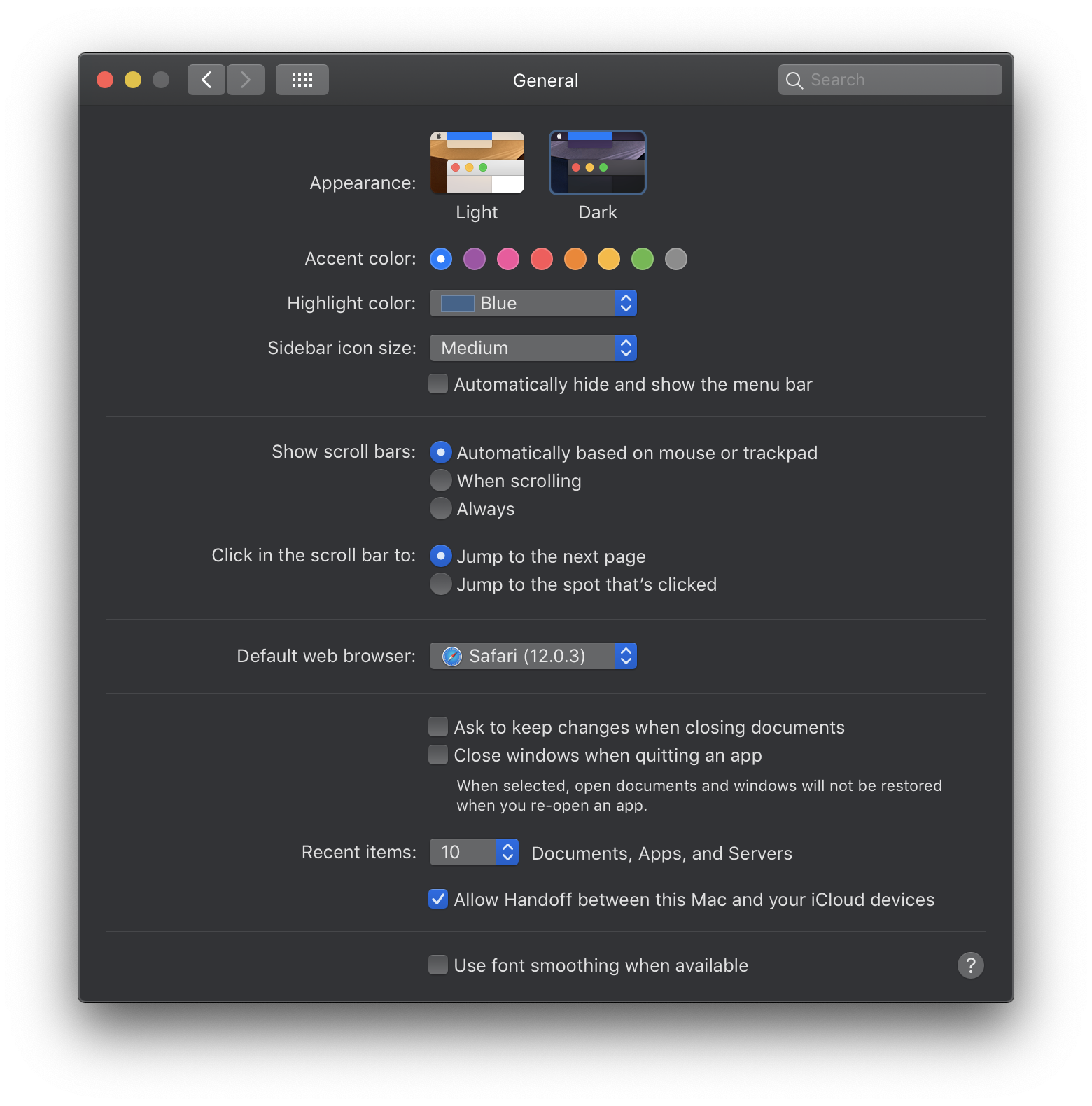
The desktop pictures are available in the Desktop & Screensaver pane. Not surprisingly, Apple provides desktop pictures that look great with the different accent color options.
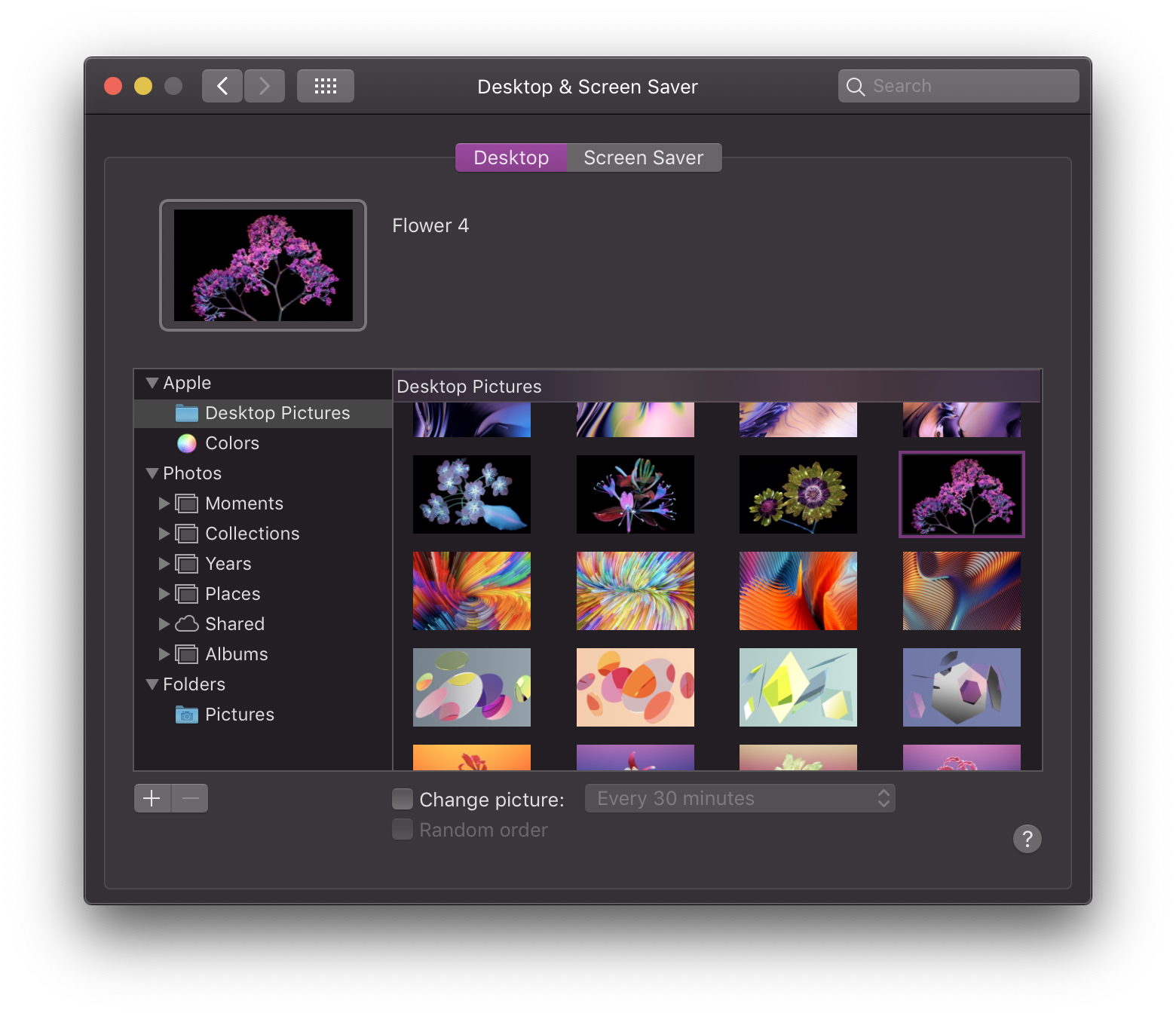
For the screenshots, I chose:
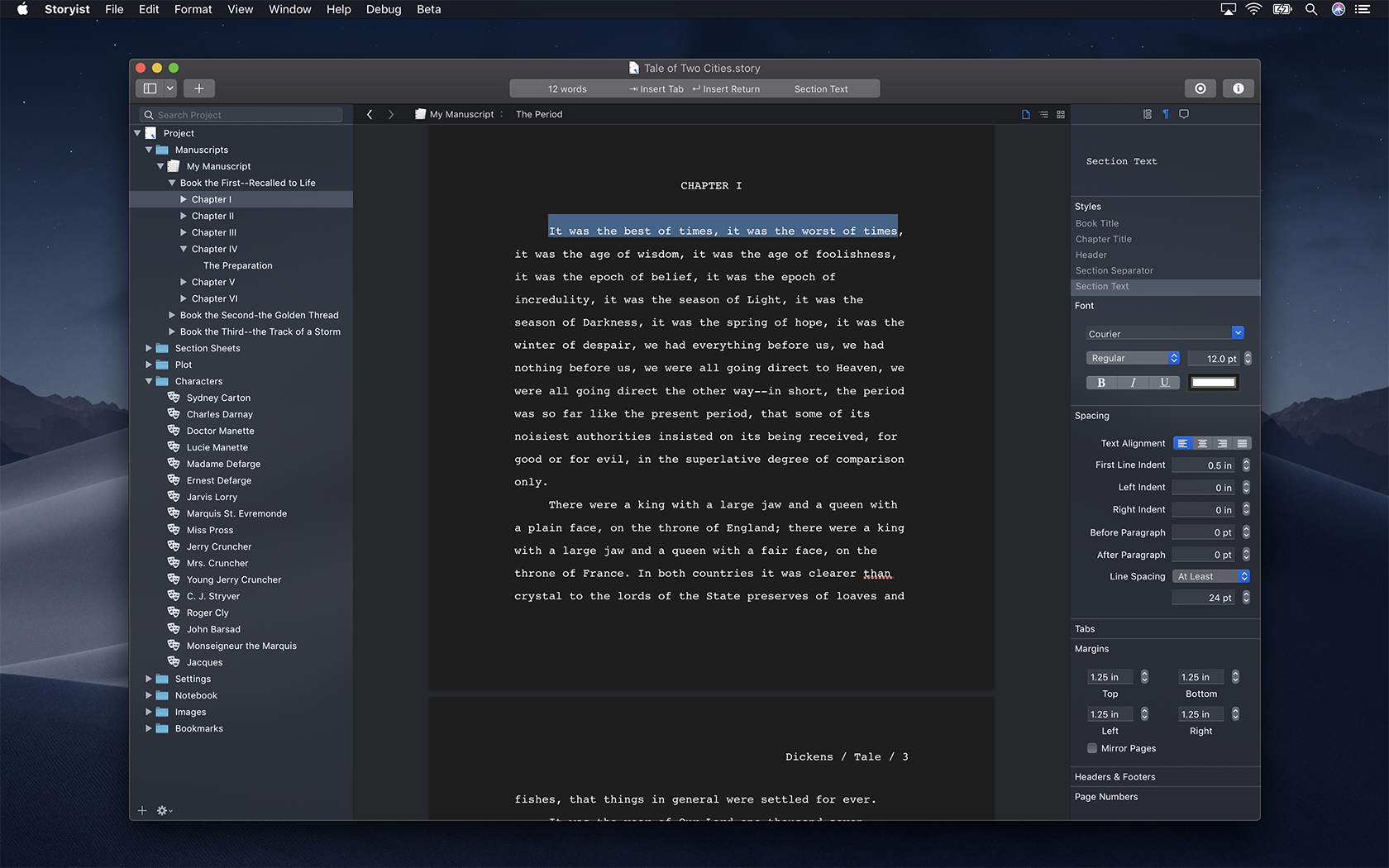
- The blue accent color with Mojave Night.
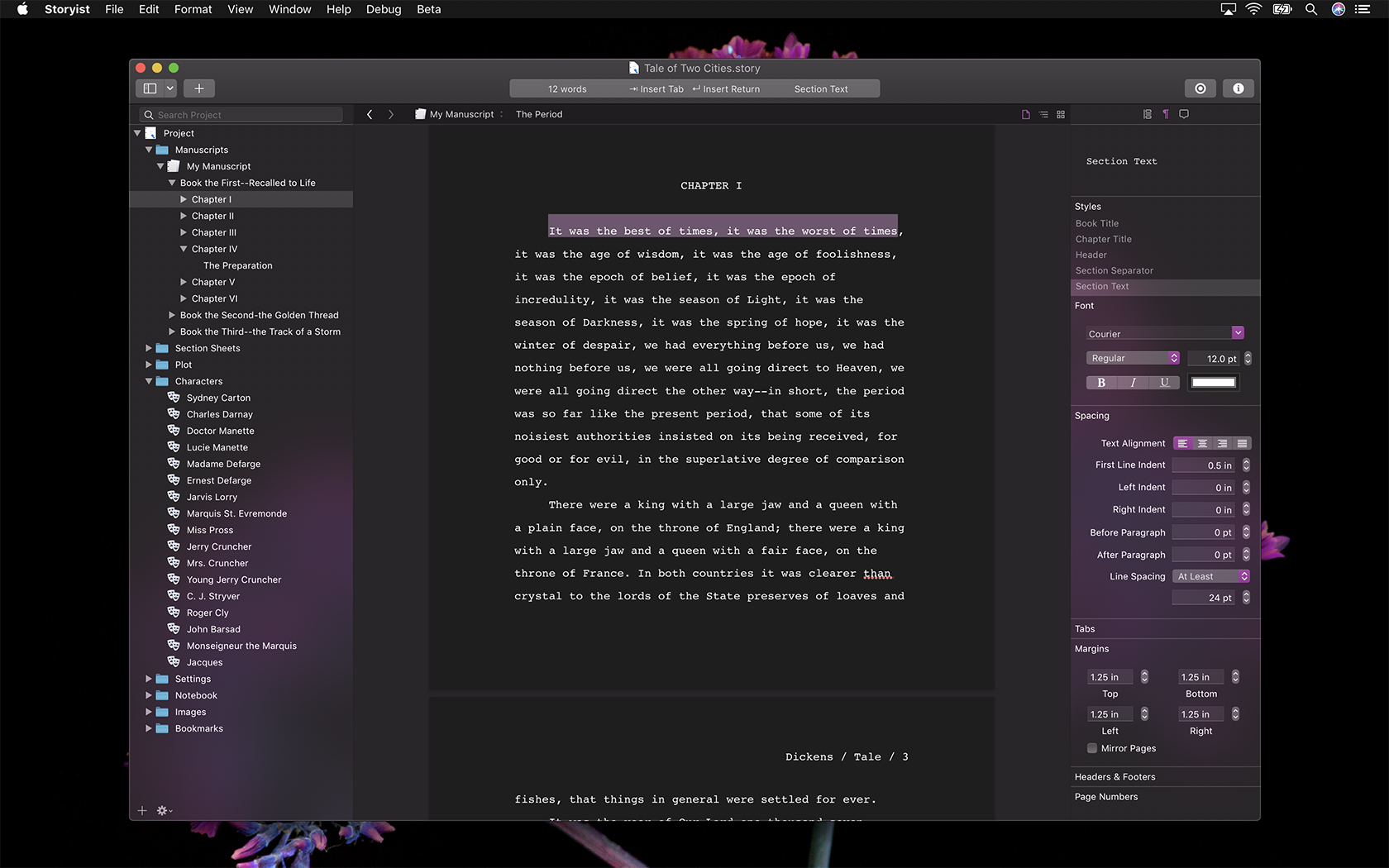
- The purple accent color with Flower 4.
- The orange accent color with Flower 5.
- The pink accent color with Flower 7.
</figcaption></figure><figure class='gallery-item'>
<div class='gallery-icon landscape'>
<a href="/images/blog/Dark-Orange.png"><img width="300" height="188" src="/images/blog/Dark-Orange.png" class="attachment-medium size-medium" alt="" aria-describedby="gallery-3-243" data-attachment-id="243" data-permalink="/blog/2019/01/storyist-4-sneak-peek/dark-orange/" data-orig-file="/images/blog/Dark-Orange.png" data-orig-size="1680,1050" data-comments-opened="0" data-image-meta="{"aperture":"0","credit":"","camera":"","caption":"","created_timestamp":"0","copyright":"","focal_length":"0","iso":"0","shutter_speed":"0","title":"","orientation":"0"}" data-image-title="Dark-Orange" data-image-description="" data-medium-file="/images/blog/Dark-Orange.png" data-large-file="/images/blog/Dark-Orange.png" /></a>
</div>
<figcaption class='wp-caption-text gallery-caption' id='gallery-3-243'>
Dark mode with orang accent color
</figcaption></figure><figure class='gallery-item'>
<div class='gallery-icon landscape'>
<a href="/images/blog/Dark-Pink.png"><img width="300" height="188" src="/images/blog/Dark-Pink.png" class="attachment-medium size-medium" alt="" aria-describedby="gallery-3-245" data-attachment-id="245" data-permalink="/blog/2019/01/storyist-4-sneak-peek/dark-pink/" data-orig-file="/images/blog/Dark-Pink.png" data-orig-size="1680,1050" data-comments-opened="0" data-image-meta="{"aperture":"0","credit":"","camera":"","caption":"","created_timestamp":"0","copyright":"","focal_length":"0","iso":"0","shutter_speed":"0","title":"","orientation":"0"}" data-image-title="Dark-Pink" data-image-description="" data-medium-file="/images/blog/Dark-Pink.png" data-large-file="/images/blog/Dark-Pink.png" /></a>
</div>
<figcaption class='wp-caption-text gallery-caption' id='gallery-3-245'>
Dark mode with pink accent color.
</figcaption></figure>
</div>
If you click on the gallery above and compare the screenshots, you’ll notice a subtle effect: The hue of the toolbar and page background changes slightly to reflect the average color of the desktop image. You’ll get this effect with your own desktop backgrounds too, so experiment with photos from your albums.
Choosing the Text Editor Properties
By default, Storyist 4 displays light text on a dark background in dark mode. This is usually what you want if your project is just text. However, if you’re designing for print, or you want complete control of text color, you might want to see dark text on a light background. To accomplish this, open the Storyist Preferences window, select the Appearance pane, and select “Use light appearance” for the text editor.
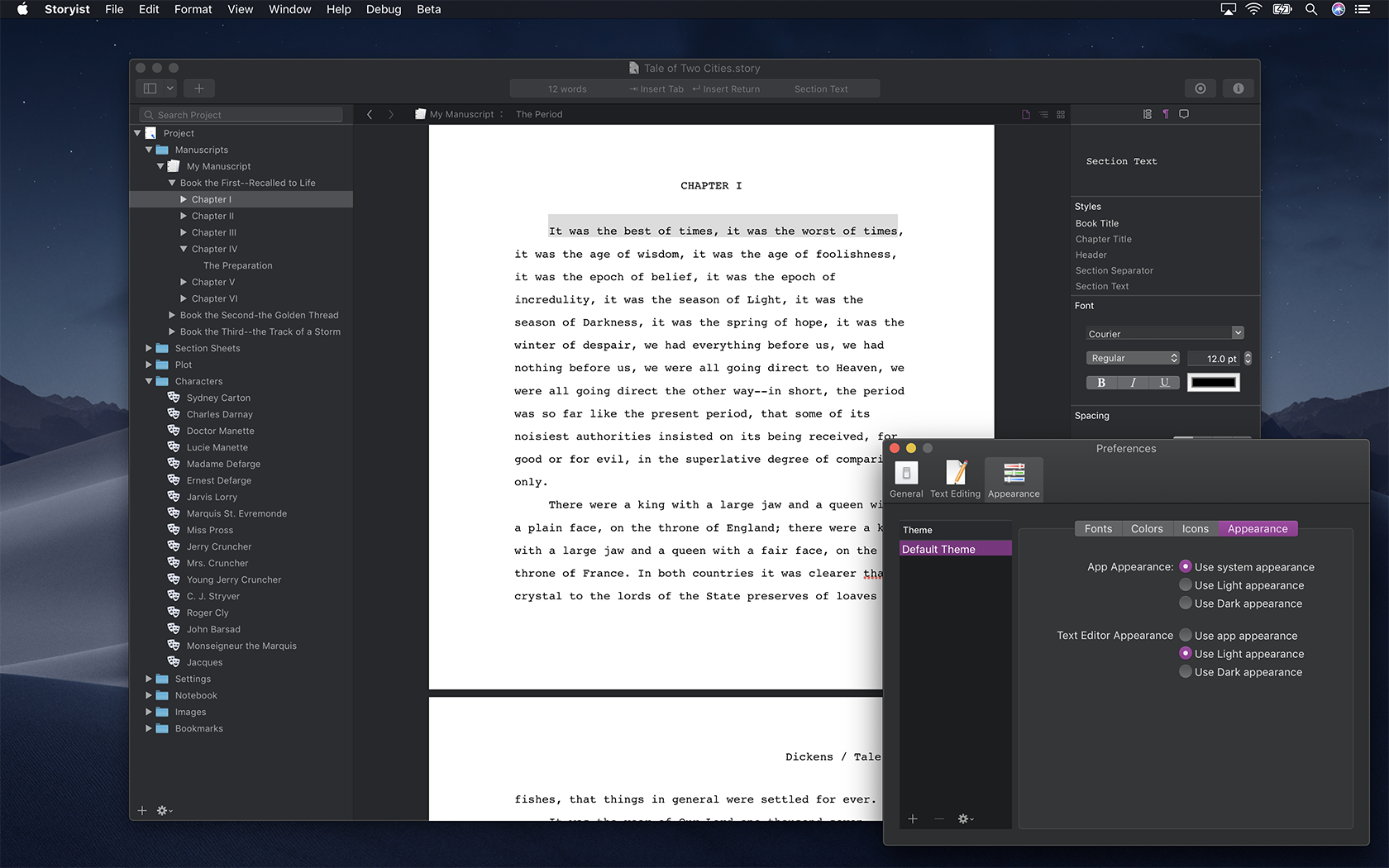
As you see in the screenshot, you can also set the application appearance to be always light or always dark independent of the system appearance.
Special Considerations for Text in Dark Mode
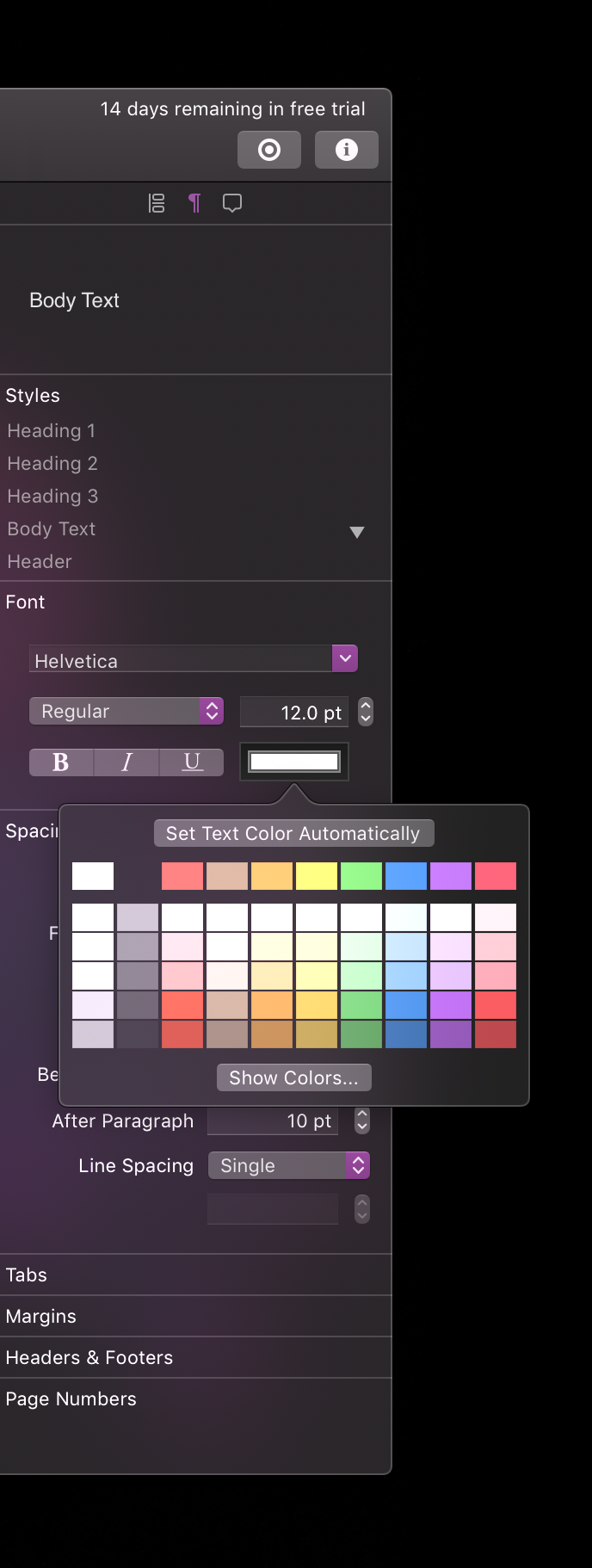
When the text editor is in dark mode, text having the default text color (black) is automatically changed to white. However, text having another color will not change. You may run into this, for example, if you import text that is dark gray instead of black. You can easily change the text color to work in both light and dark mode by selecting the text and clicking the “Set Text Color Automatically” button in the font color chooser in the inspector.
If you have other questions, let me know. And good luck with your projects.
-Steve