
Installing and Purchasing Storyist for macOS
You can get Storyist for macOS two ways: download it from the Storyist website, or install it from the Mac App Store. The app is the same either way. The difference is who handles the purchase, and that changes a few of the steps below, so each section covers both.
If you’ve already bought Storyist from the website and just need to install your license code, see How to Install Your License Code.
Installing Storyist
From the Storyist website. Download the Storyist disk image, open it, and drag Storyist to your Applications folder.
From the Mac App Store. Open the App Store on your Mac, visit the Storyist page, and click Get. Storyist downloads to your Applications folder.
Starting Your Free Trial
Storyist is free to try for 14 days. When you first open the app, a window appears with the option to start the trial or purchase the app.
From the Storyist website. Click Start Trial. That’s it.
From the Mac App Store. Click Start Trial. You may be prompted to sign in to the App Store to “purchase” the trial. Don’t worry. The App Store dialog calls it a purchase, but the price is free.
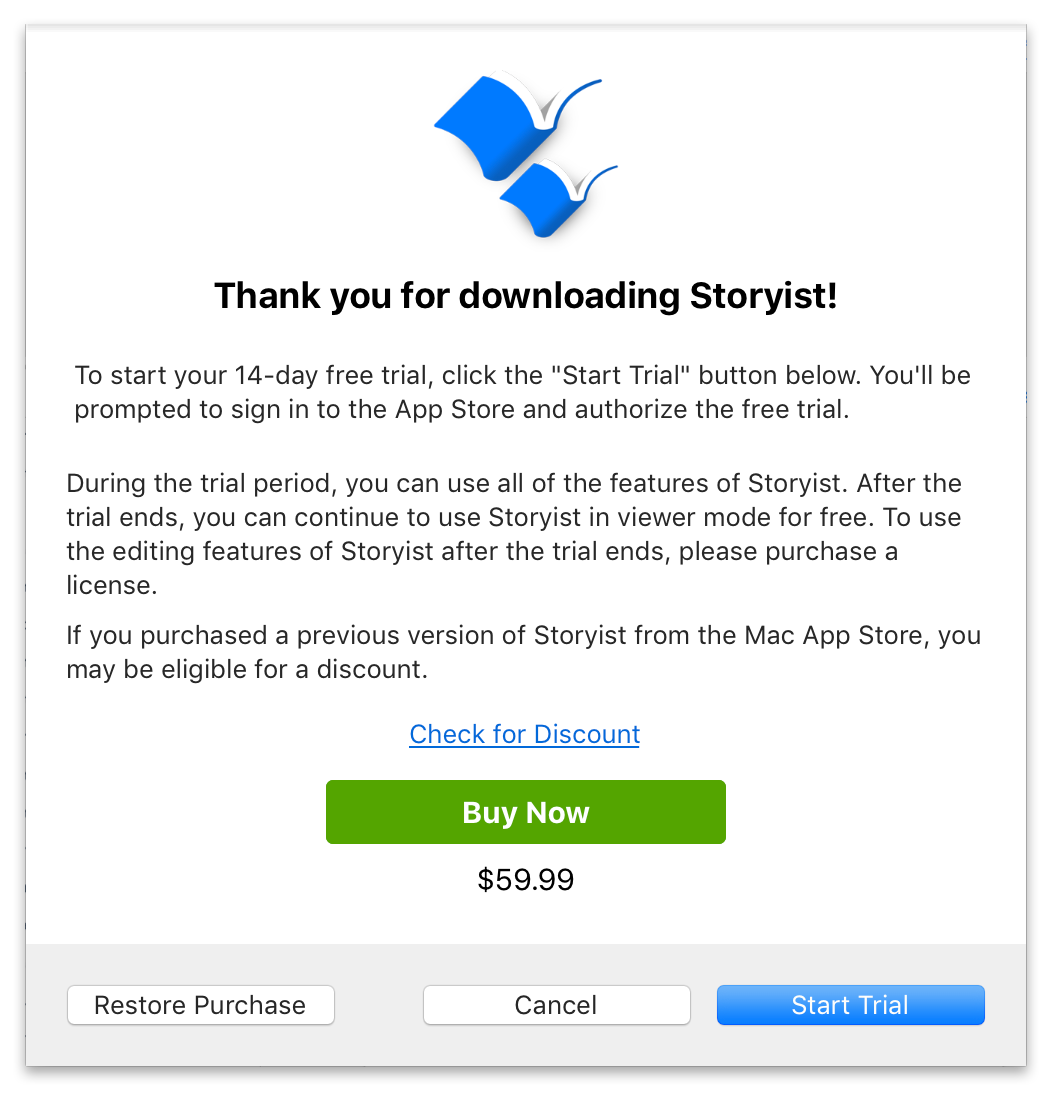
After the 14 days are up, you can continue to use Storyist to view and export your work for free in Viewer Mode. If you want to keep editing, you can unlock the app by purchasing it. If you don’t want to start your trial right away, you can do so at any time by clicking the Viewer Mode button in the main window toolbar.
Purchasing Storyist
From the Storyist website. Visit the Storyist Store and click Buy Now. Orders are handled by Paddle, our online reseller, and you’ll receive an email from Paddle with your license code within a few minutes of completing the purchase. Then, in Storyist, click Activate License in the trial dialog, enter your email address and license code, and click OK. If the email doesn’t arrive, check your spam folder, and see How to Install Your License Code for what to do next.
From the Mac App Store. Click Buy Now in the trial dialog and follow the prompts to sign in to the App Store and complete the purchase.
Upgrade Pricing for Storyist 3 Owners
If you bought Storyist 3, you’re eligible for a discount on Storyist 4.
From the Storyist website. Choose Storyist 4 Upgrade in the Storyist Store. See Upgrade to Storyist 4 for macOS for the details.
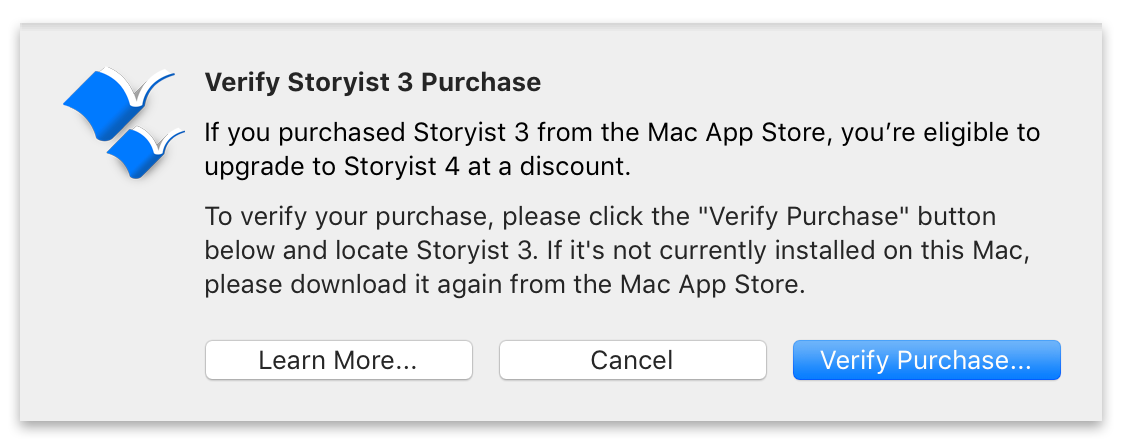
From the Mac App Store. Storyist 4 needs to find Storyist 3 on your Mac to apply the discount. If you no longer have Storyist 3, you can redownload it from the App Store. Then, in the trial dialog, click Check for Discount, click Verify Purchase, locate Storyist 3, and click Verify. The discounted price appears and you can click Buy Now. Once the purchase is complete you can delete Storyist 3.
Using Storyist on Your Other Macs
From the Storyist website. Your license covers a desktop and a laptop, provided you’re the primary user of both. Install Storyist on the second Mac and enter the same email address and license code. If you use more than two computers, contact support and we’ll take care of you.
From the Mac App Store. After you purchase Storyist on one Mac, you can use it on your other Macs for free:
- Make sure the other Mac is signed in to the App Store with the Apple ID you used for the purchase.
- Open Storyist.
- When the trial dialog appears, click Restore Purchase.