
Installing and Purchasing Storyist for iOS
Storyist for iOS is a free download on the App Store. To install it, open the App Store on your iPad or iPhone, visit the Storyist page, and tap Get.
Starting Your Free Trial
When you open Storyist, you’ll see a window that offers in-app purchases for starting a free 14-day trial and for purchasing the app. To start your trial, tap the Free Trial item, and then tap Start Free Trial.
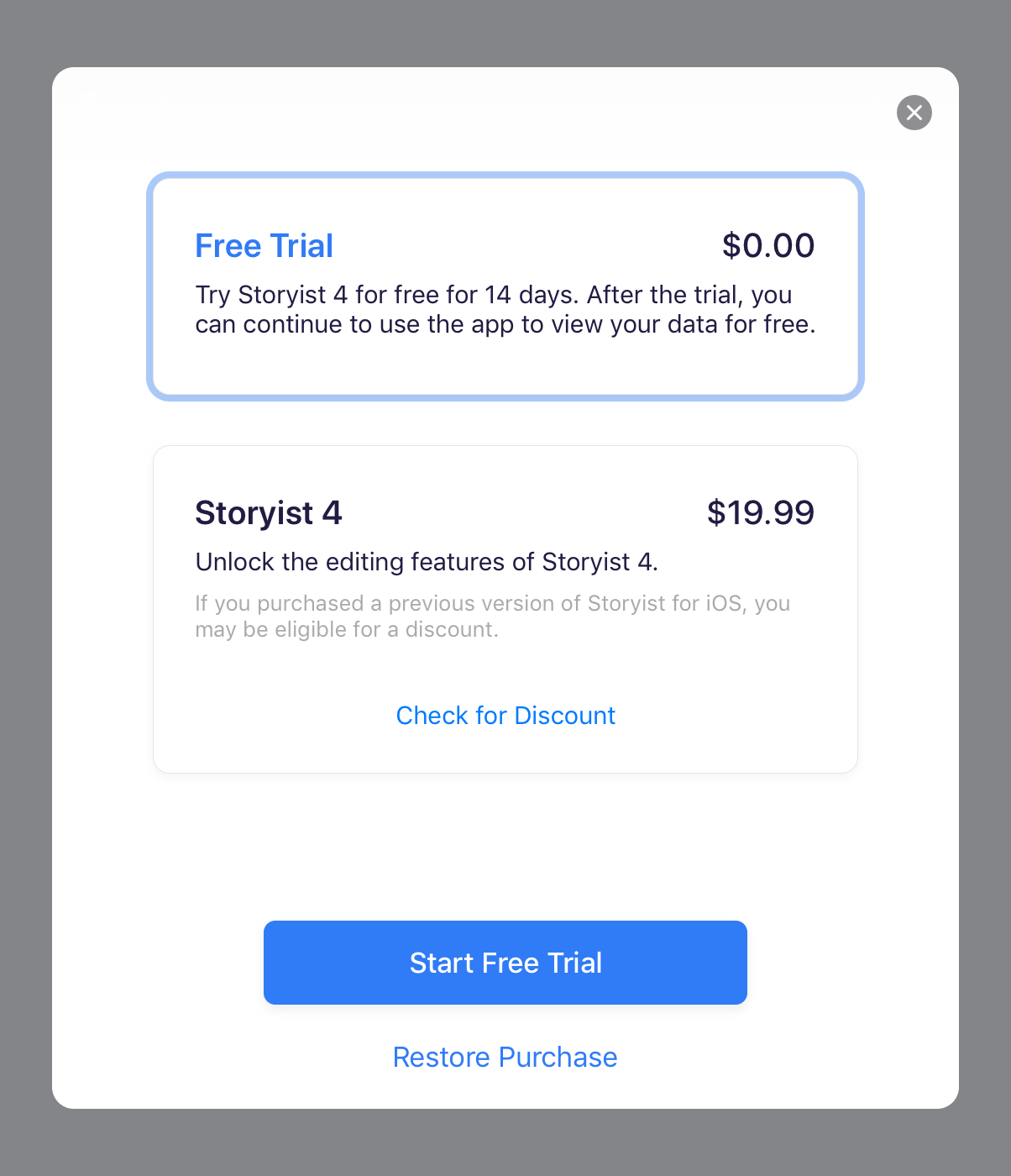
You may be prompted to sign in to the App Store to “purchase” the trial. Don’t worry. The App Store dialog calls it a purchase, but the price is free.
After the 14 days are up, you can continue to use Storyist to view and export your work for free. If you want to keep editing, you can unlock the app by purchasing it. If you don’t want to start your trial right away, you can do so at any time by returning to the Storyist home screen and choosing In-App Purchases from the More menu.
Purchasing Storyist
To unlock the editing features after the trial ends:
- Tap the Storyist item in the In-App Purchases window.
- Tap Buy Now.
- Follow the prompts to sign in to the App Store and complete the purchase.
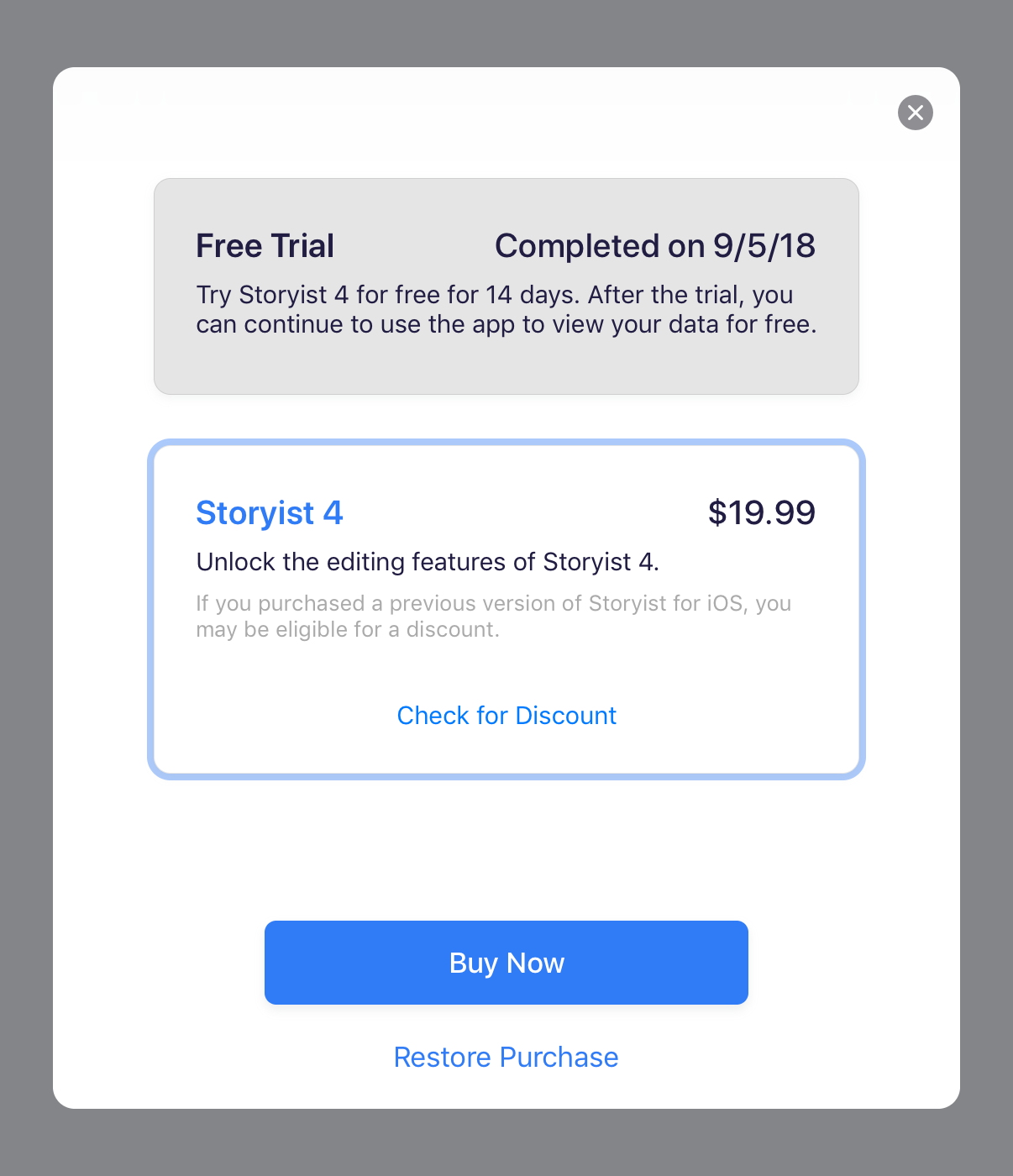
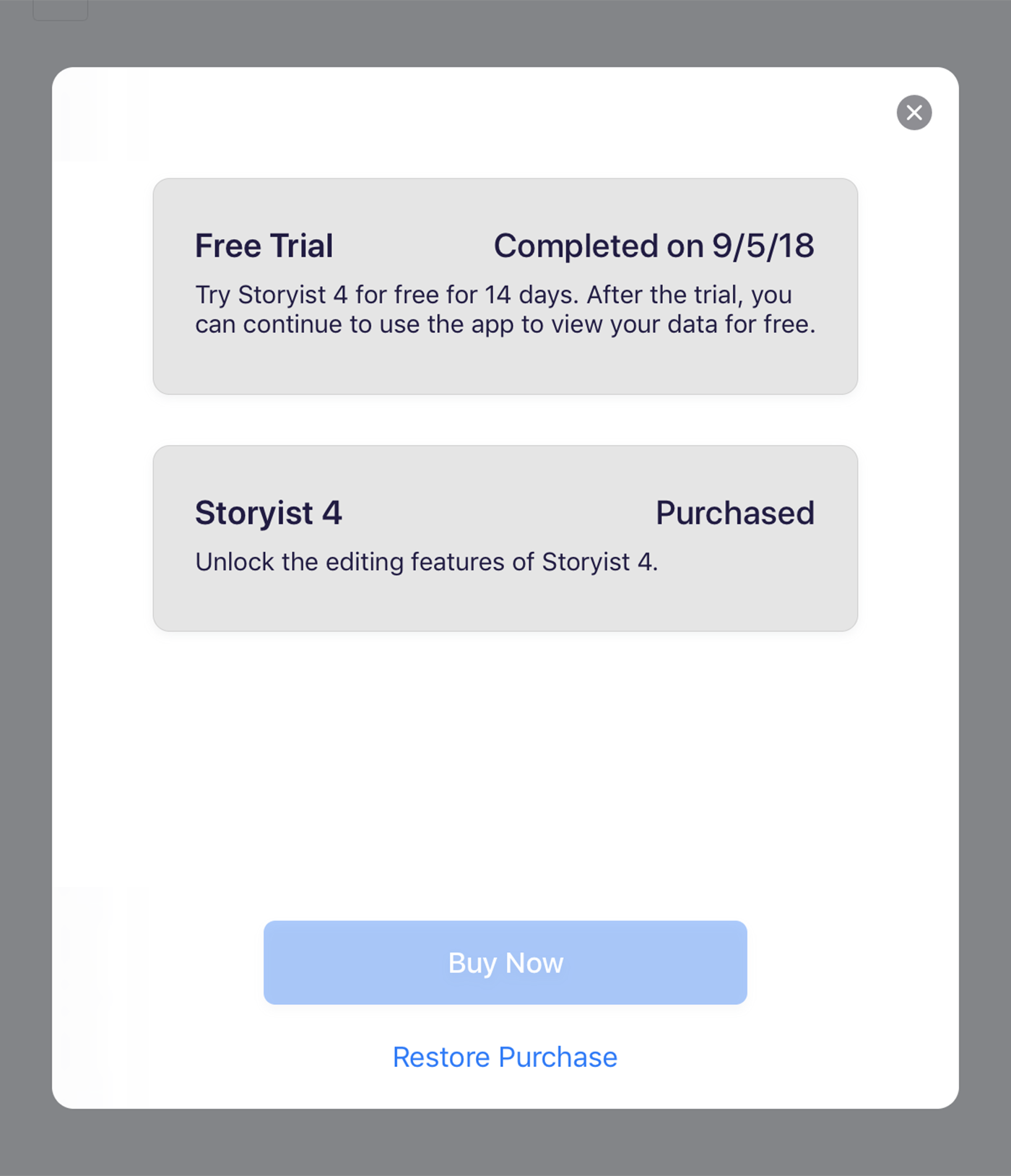
When the transaction completes, the price is replaced by the word “Purchased” and the background turns gray.
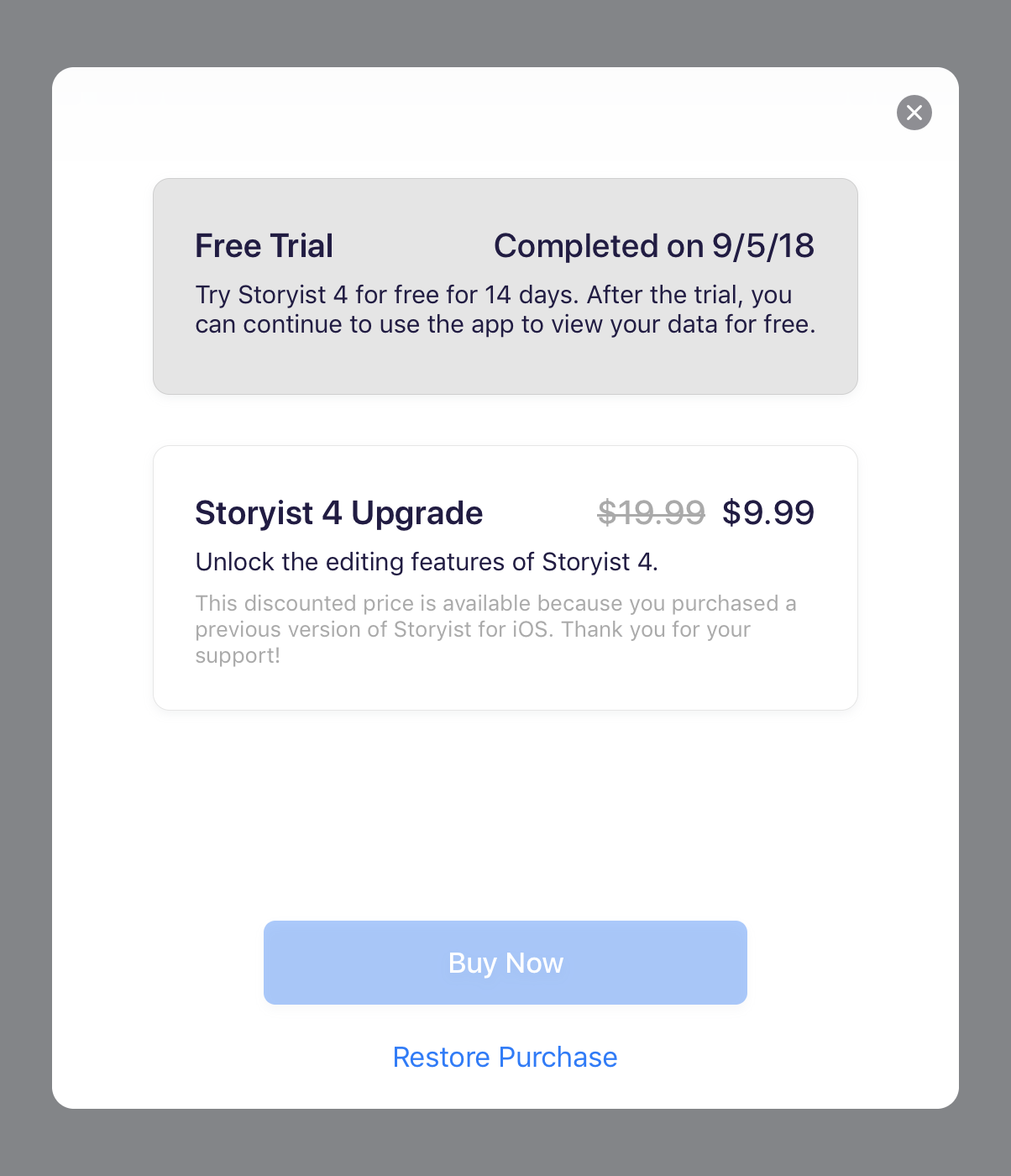
Upgrade Pricing for Storyist 3 Owners
If you bought Storyist 3 for iOS, you’re eligible for a discount on Storyist 4. Storyist 4 needs to find Storyist 3 on your device to apply it, so if you’ve deleted Storyist 3, redownload it from the App Store first. Then tap Check for Discount in the Storyist 4 item, and Storyist locates version 3 and applies the discount.
Once you’ve purchased Storyist 4, you can delete Storyist 3, but back up your files first. When you delete an app, iOS removes the files stored “On My iPad” or “On My iPhone” along with it. If you kept your Storyist 3 files there rather than in iCloud or Dropbox, the easiest fix is to move them to iCloud before deleting: open Storyist 3, tap the More (…) menu, choose Cloud Setup, tap In iCloud, and tap OK. Open Storyist 4 and confirm everything is there before you delete Storyist 3.
Using Storyist on Your Other Devices
After you purchase Storyist on one iOS device, you can use it on your other iPads and iPhones for free:
- Make sure the other device is signed in to the App Store with the Apple ID you used for the purchase.
- Open Storyist.
- Choose More > In-App Purchases.
- Tap Restore Purchase.