
The User Interface at a Glance
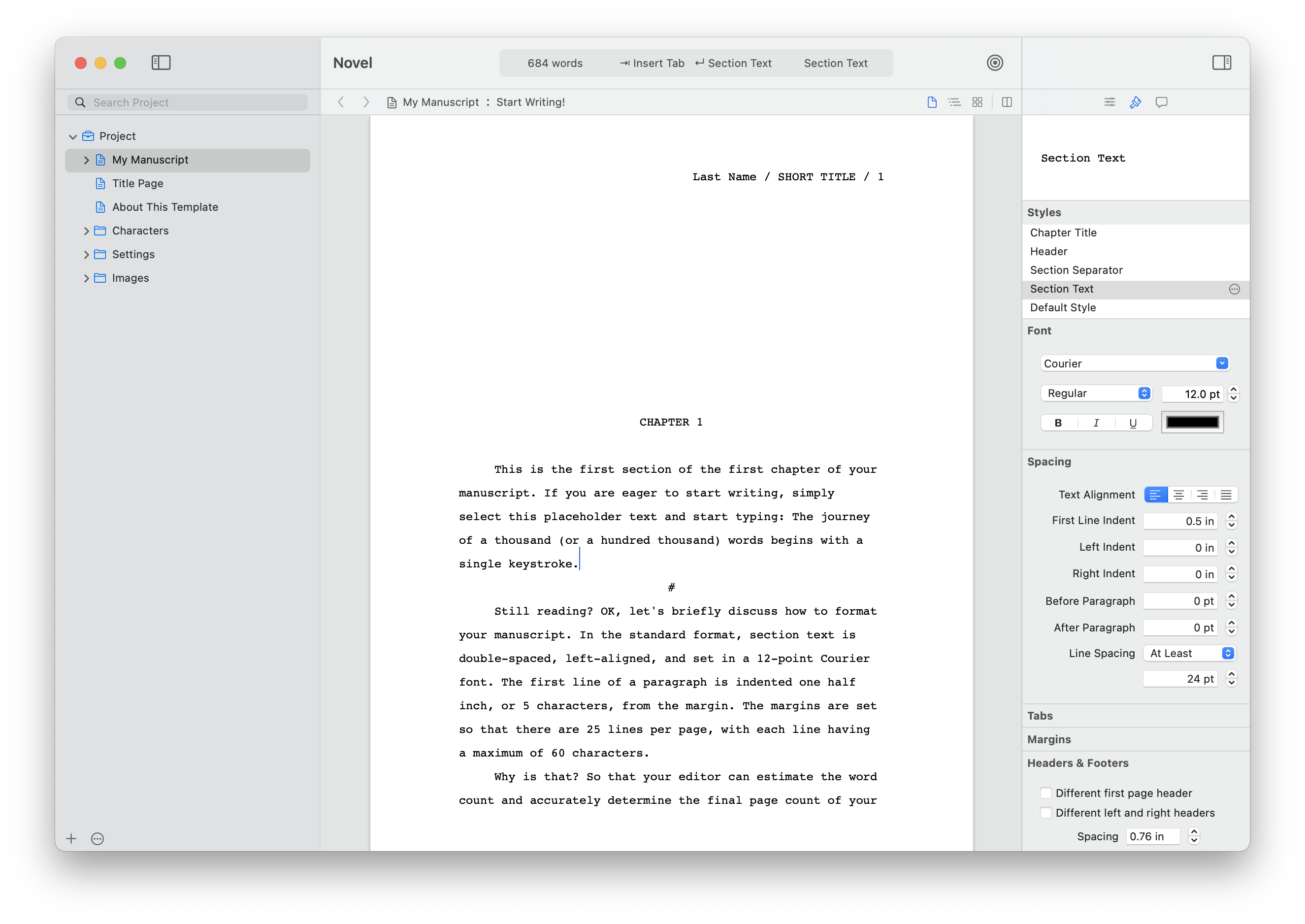
The Storyist main window consist of four parts:
- The Project view—Displays the files and folders associated with your project.
- The Main view—Provides an area for editing project files. The Main view can be configured to display files as text, outlines, or storyboards. It can also be split so you can see multiple project items at the same time.
- The Inspector—Provides setup and formatting controls for selected files.
- The Toolbar—Provides buttons for setting up the Storyist window, adding files and folders to the project, viewing writing goals. It also provides a context-sensitive status bar.
Project View
A Storyist project can contain text files, story sheets, folders, images, and bookmarks. The Project View—located to the left of the main window—helps you organize and access these items quickly.
To hide the Project View, choose View > Hide Project View. To display it again, choose View > Show Project View.
Main View
The Main view, located to the right of the Project view, has two components:
- The navigation bar—The button strip at the top of the view.
- The editing area—The area in the middle of the view, which you can set up to be a text view, an outline view, or a storyboard view.
The Main view can be split both horizontally and vertically so that you can see multiple project items at once. For more information, please see the section titled “Splitting Views.”
Navigation Bar
Much like a web browser, the navigation bar lets you switch between recently viewed pages. It also controls whether the view’s content is displayed using the Text view, the Outline view, or the Storyboard view.

The navigation bar contains the following buttons:
- Back Button—Returns you to the previous item in your viewing history.
- Forward Button—Takes you to the next item in your viewing history.
- File Pop-up Menu—Pops up the list of files and folders in your project.
- Outline Pop-up Menu—Pops up the outline of your text file, allowing you to navigate to sections of your text.
- View as Text Button—Switches the editing area to the Text view.
- View as Outline Button—Switches the editing area to the Outline view.
- View as Storyboard Button—Switches the editing area to the Storyboard view.
- Split View Button—Splits the editor on macOS Big Sur and later.
Text View
The Text view is where you’ll do most of your writing. It displays your text files and story sheets in text form.
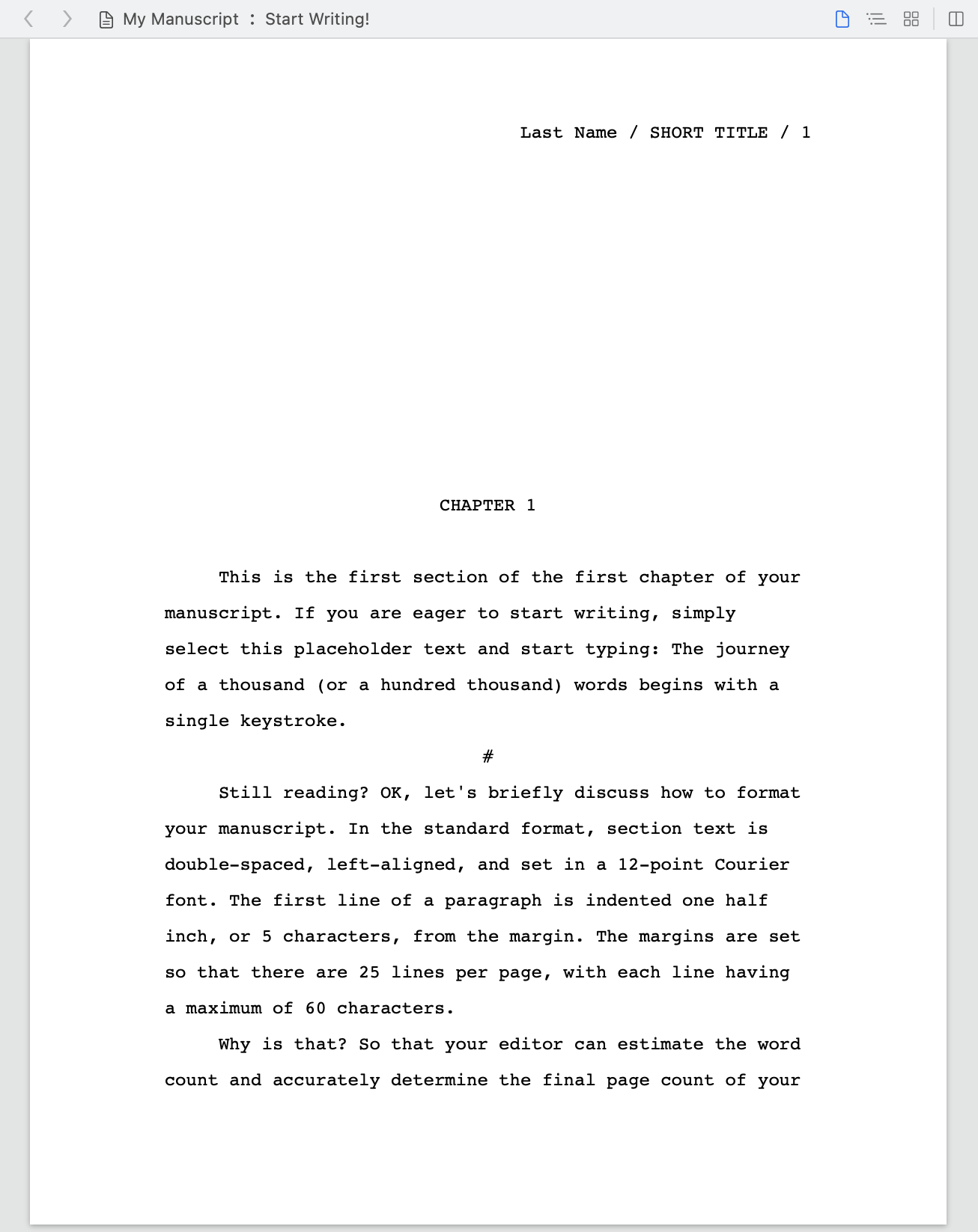
To view your story elements in the Text view, navigate to the element you want to view, and do one of the following:
- Choose View > as Text.
- Click the View as Text button (the first button on the right) in the Navigation bar.
For more information on the Text View, please see the chapter titled “Working with Text.”
Outline View
The outline view provides traditional outlining tools that let you quickly capture your ideas and work with them at a high level.
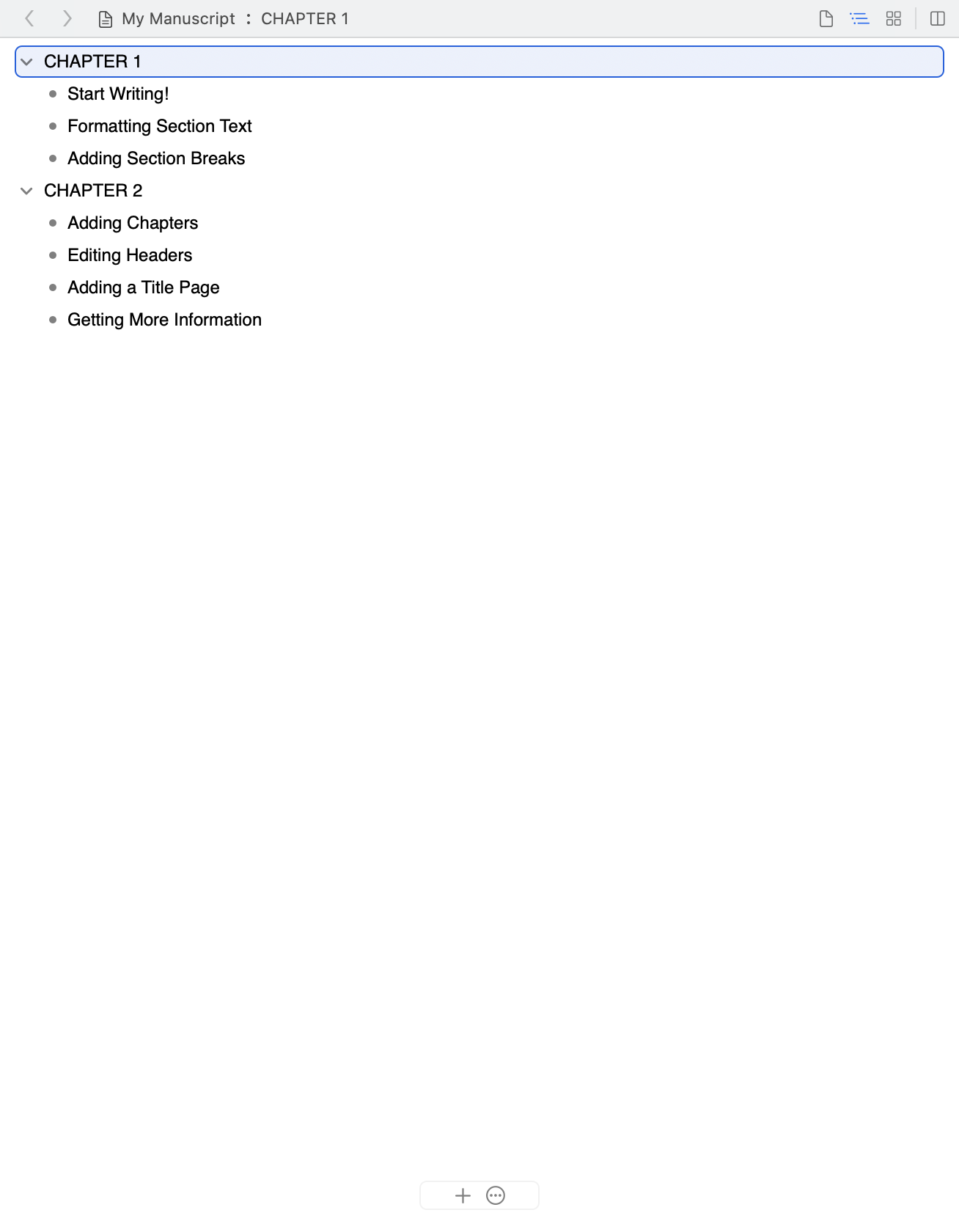
To view your story elements in the Outline view, navigate to the element you want to view, and do one of the following:
- Choose View > as Outline.
- Click the View as Outline button (the second button showing three staggered horizontal lines) in the Navigation bar.
For more information on the Outline view, please see the chapter titled “Working with Outlines.”
Storyboard View
The storyboard view gives you a high-level overview of your text files, folders, and story elements (characters, plot points, and settings) by displaying them as index cards or photographs on a corkboard or collage.
To view your story elements in the Storyboard view, do one of the following:
- Choose View > as Storyboard.
- Click the View as Storyboard button in the Navigation bar (the right-most button).
Headings and groups are shown as items on a corkboard.
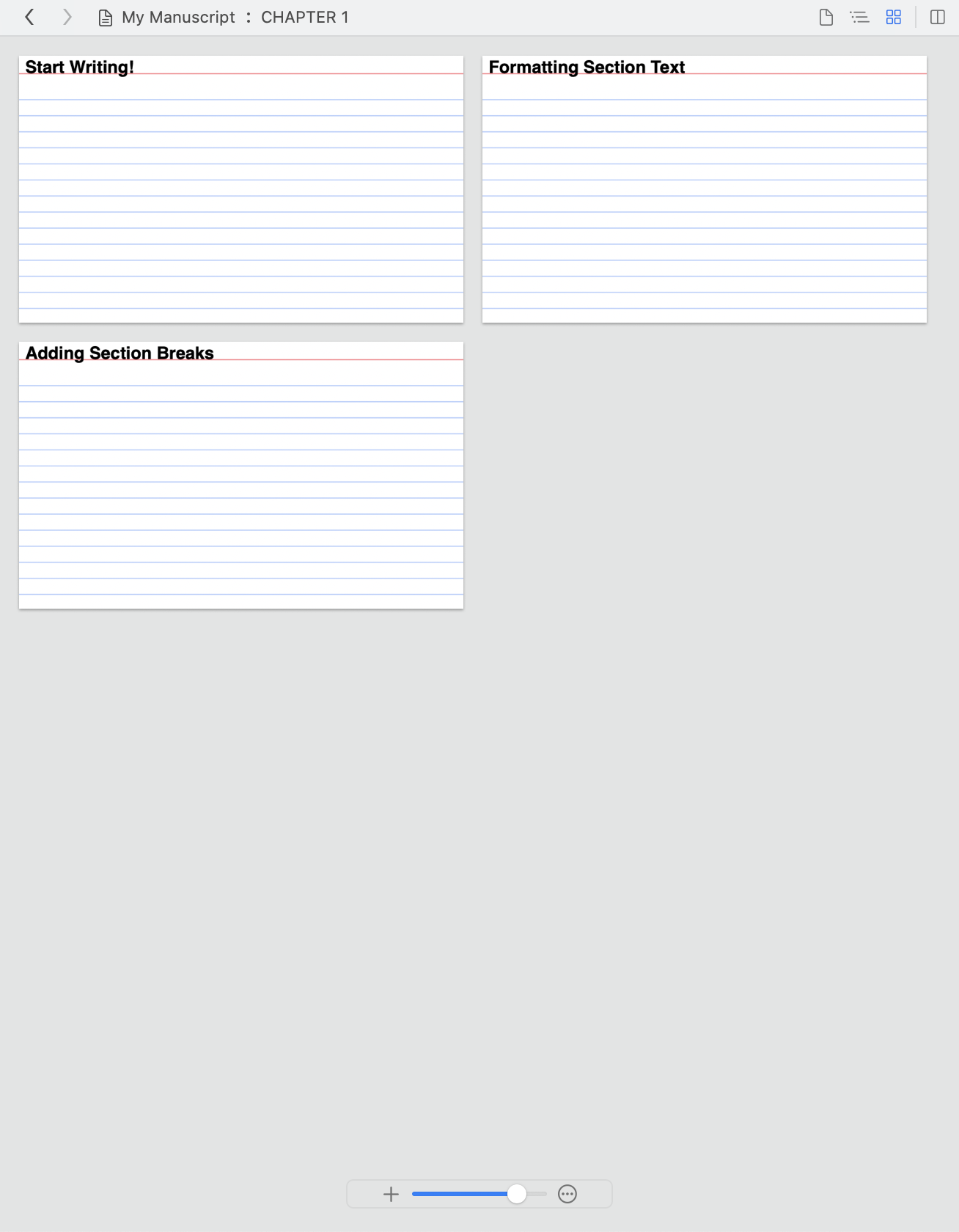
Body text and individual story elements are shown in a collage.
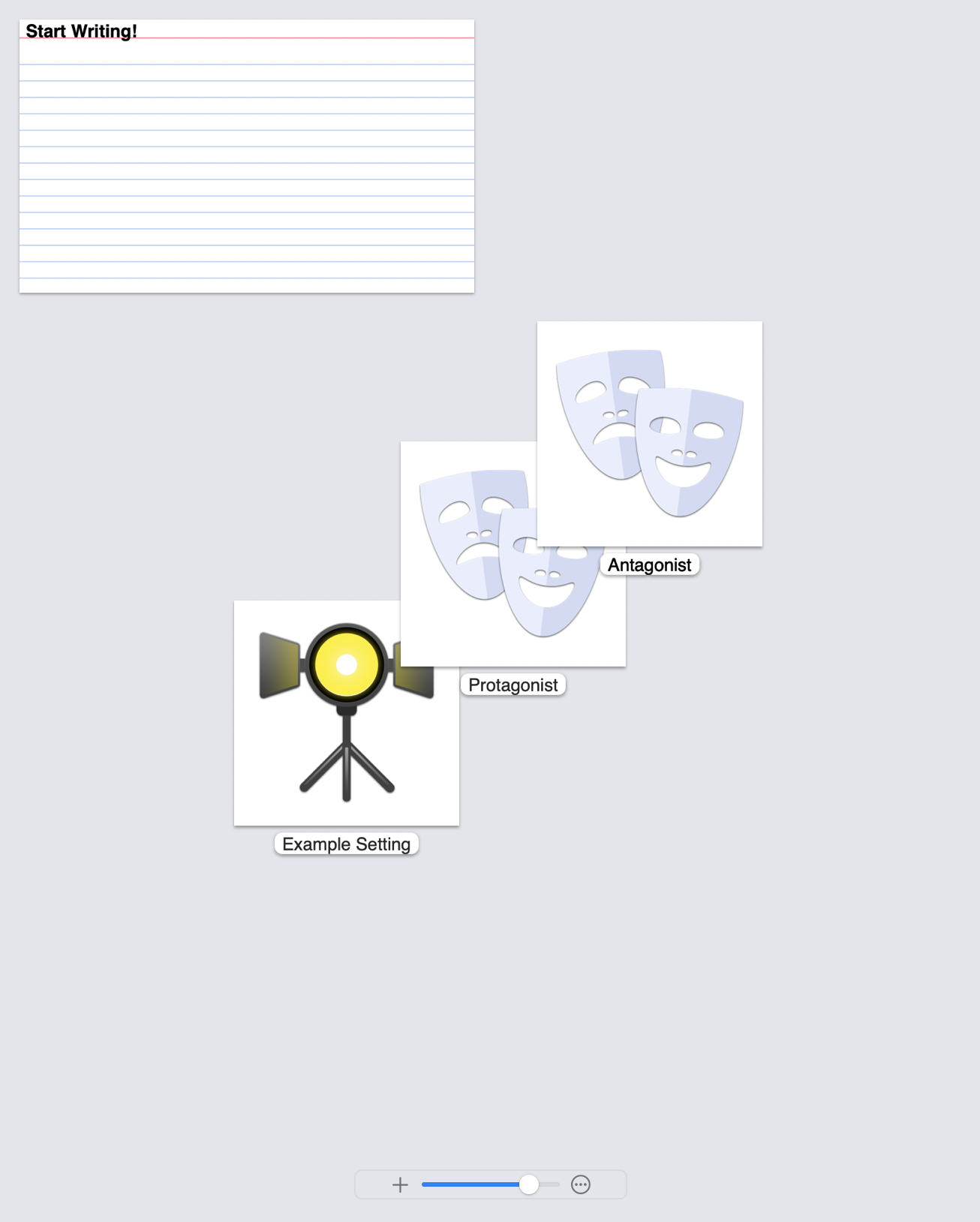
For more information on the Storyboard view, please see “Working with Storyboards.”
Toolbar
The Storyist toolbar provides buttons for setting up the Storyist window and a status bar that shows information about the current cursor selection. The default toolbar configuration is shown below.

Starting from the left, these are the Toolbar icons:
- View—Provides a quick way to show or hide the Project view or the project trash. It also lets you split the editor either horizontally or vertically.
- Add—Provides a quick way to add text files, story sheets, or folders to your project.
- Goals—Opens the writing goals popover.
- Inspector—Opens or closes the Inspector.
Template Chooser
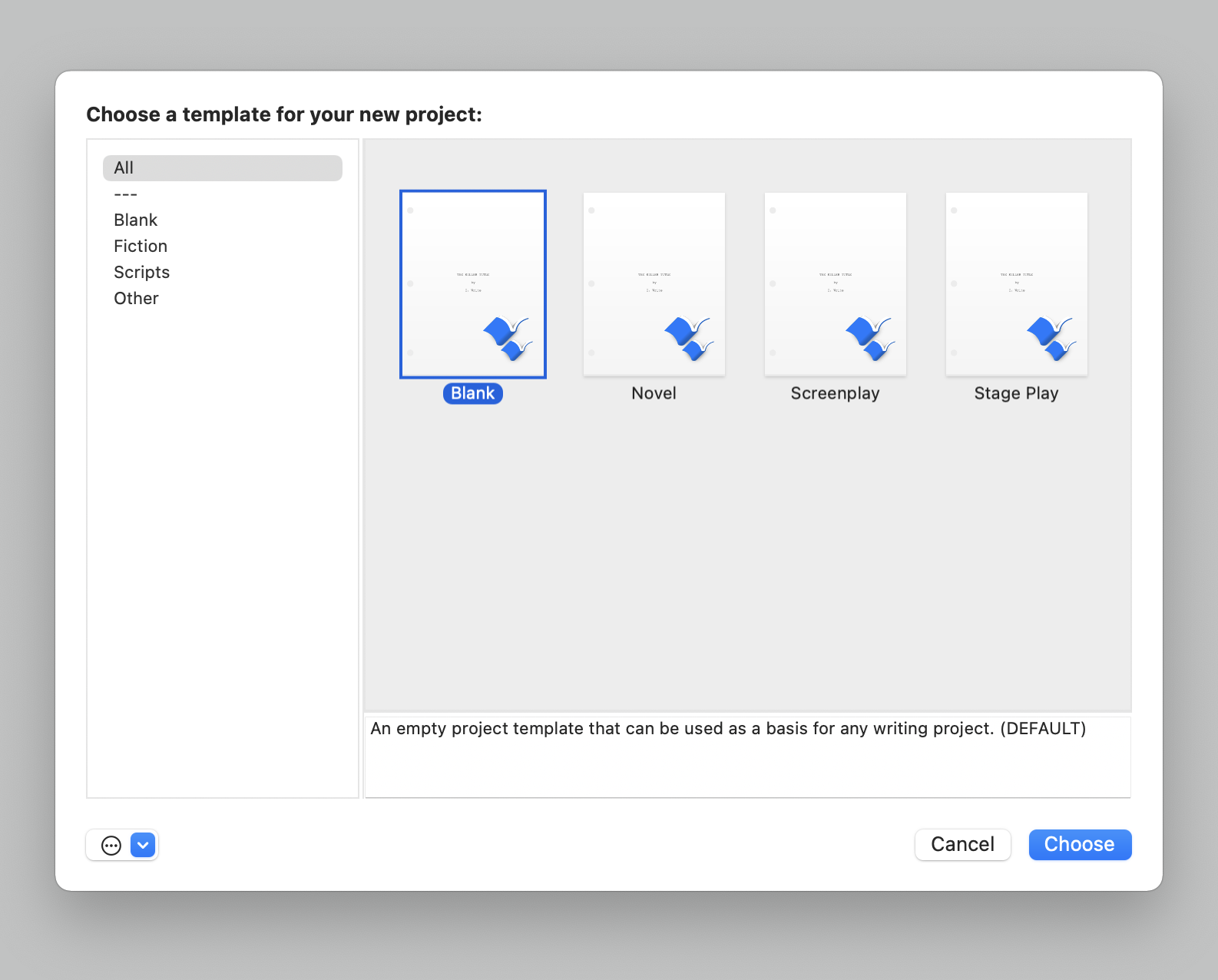
When you create a new document, Storyist displays a dialog asking you to choose a template for your project.
Workspaces Window
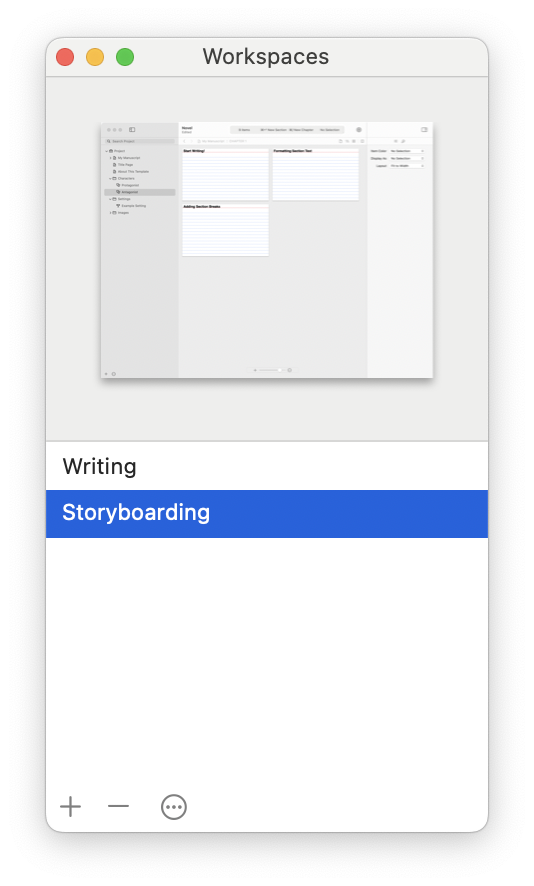
The Workspaces window lets you create and quickly switch between snapshots of your project views and windows. To view the Workspaces window, choose Window > Workspaces > Manage Workspaces.
Inspector View
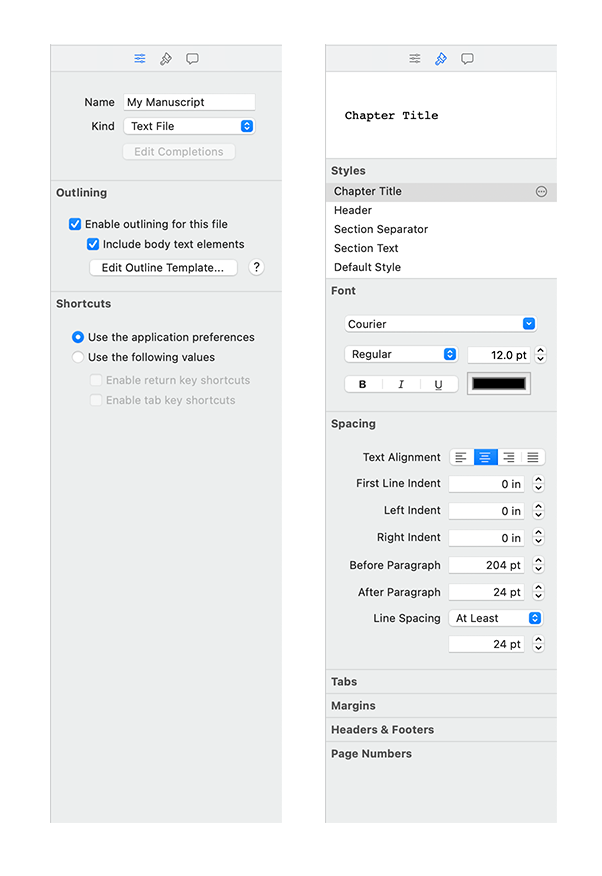
The Inspector view allows you to view and edit settings and formatting information.
To open the Inspector view, do either one of the following:
- From the toolbar, click the Inspector button.
- From the main menu, choose View > Show Inspector.
Each type of project item has an inspector. The project and text inspectors are shown below.
Versions Window
The Versions window gives you a quick overview of the older versions of your project and allows you to:
- Save a version (backup) of the project.
- Remove selected versions from the versions repository.
- Restore the project state from a previous version.
- Open a copy of a previous version for viewing.
To view the Versions Window, choose File > Show Previous Versions.
Note: The Versions Window is not available until you’ve saved your project.
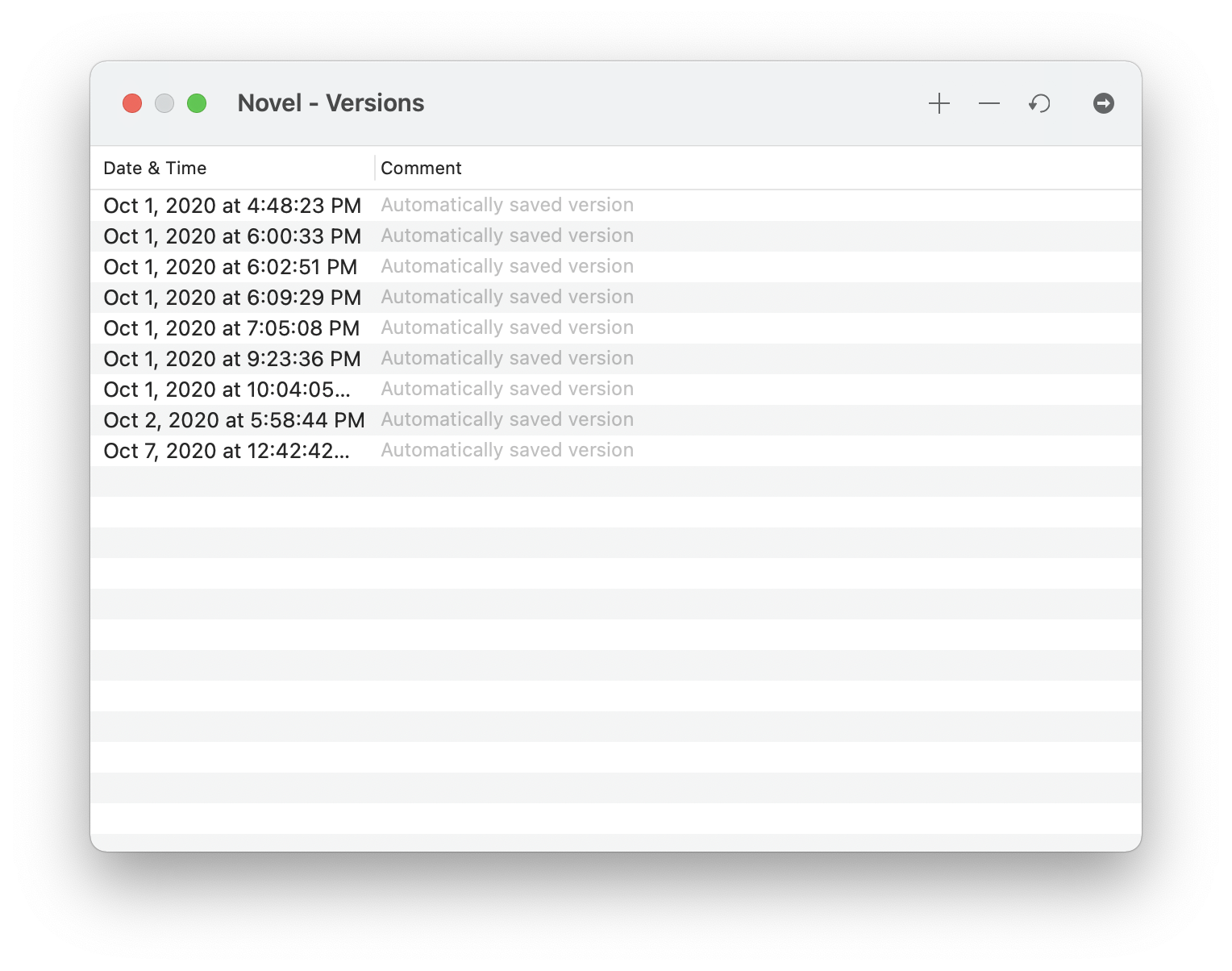
Versions are stored on your Mac, and if you’ve enabled Time Machine, on your backup drive.
Fonts Window
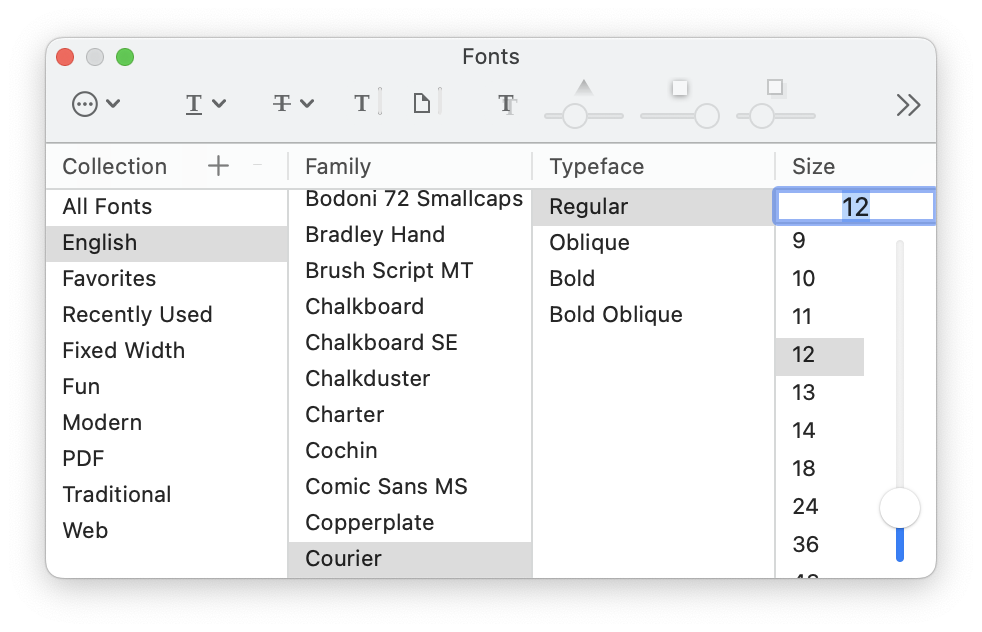
You can use the macOS Fonts window to change font attributes such as typeface, size, color, underlining, and strikethrough. To view the Fonts window, choose Format > Font > Show Fonts.
Colors Window
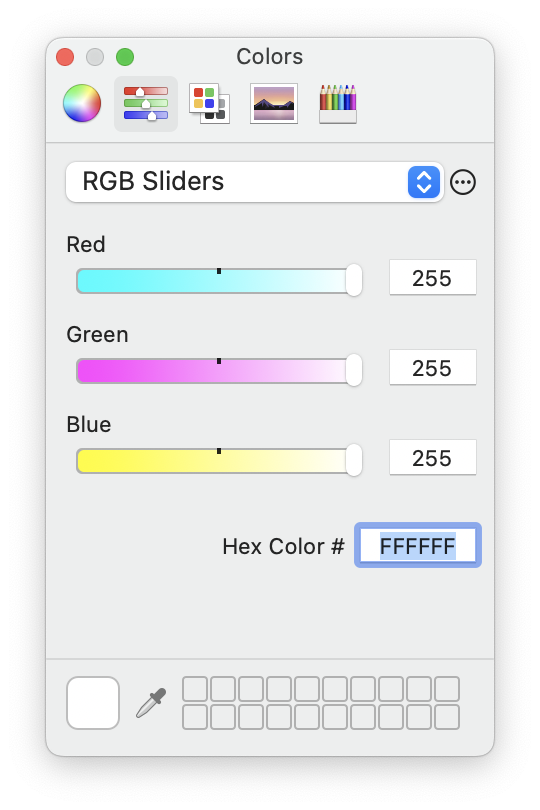
You can use the macOS Colors window to change text color. To view the Colors window, do one of the following:
- Choose Format > Font > Show Colors
- Open the Inspector, select the Text Inspector tab, and click the color well in the Size and Color section.
Preferences Window
General Preferences Pane
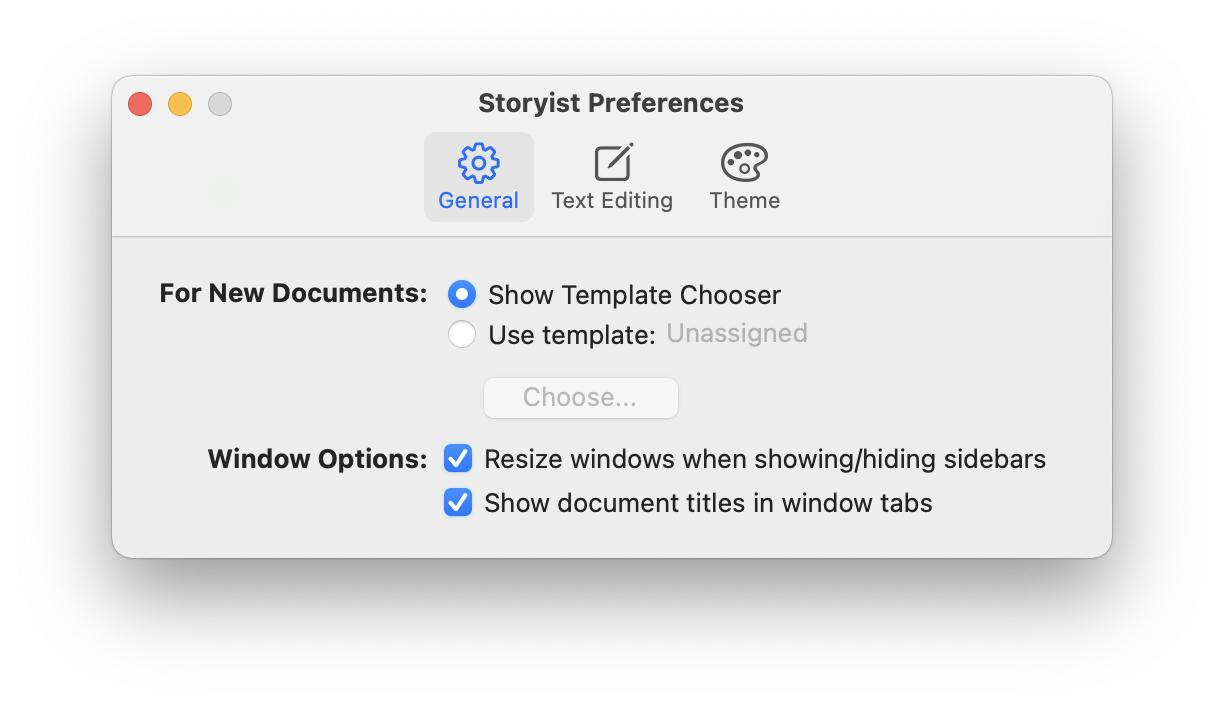
The General Preferences Pane lets you specify which template to use for new documents.
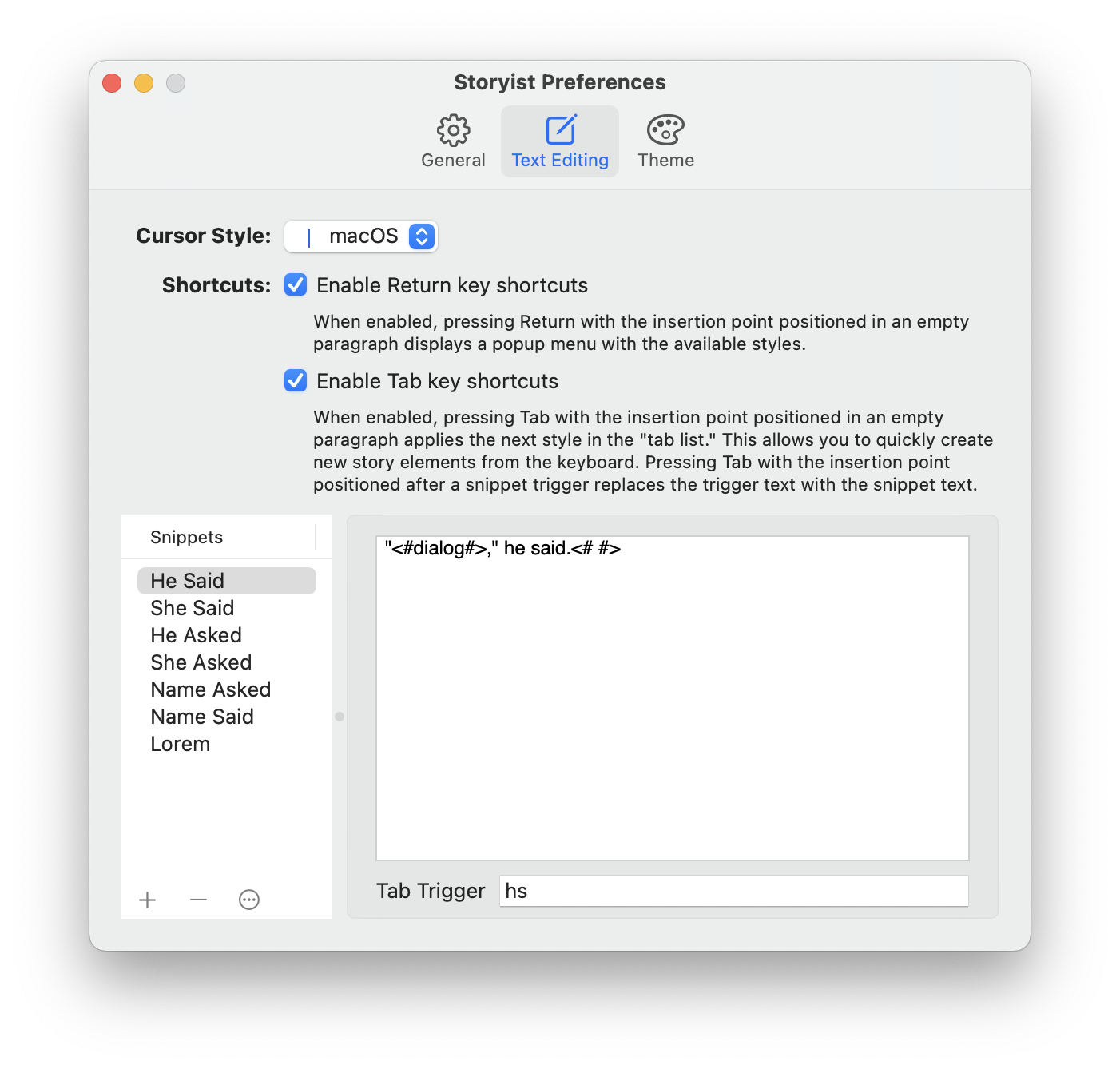
Text Editing Preferences Pane
The Text Editing Preferences pane lets you specify:
- The behavior of the Tab and Return keys. Storyist can use these keys as shortcut keys to make changing styles as simple as typing a key or two.
- Small snippets of text you can insert in your text files using the tab key.
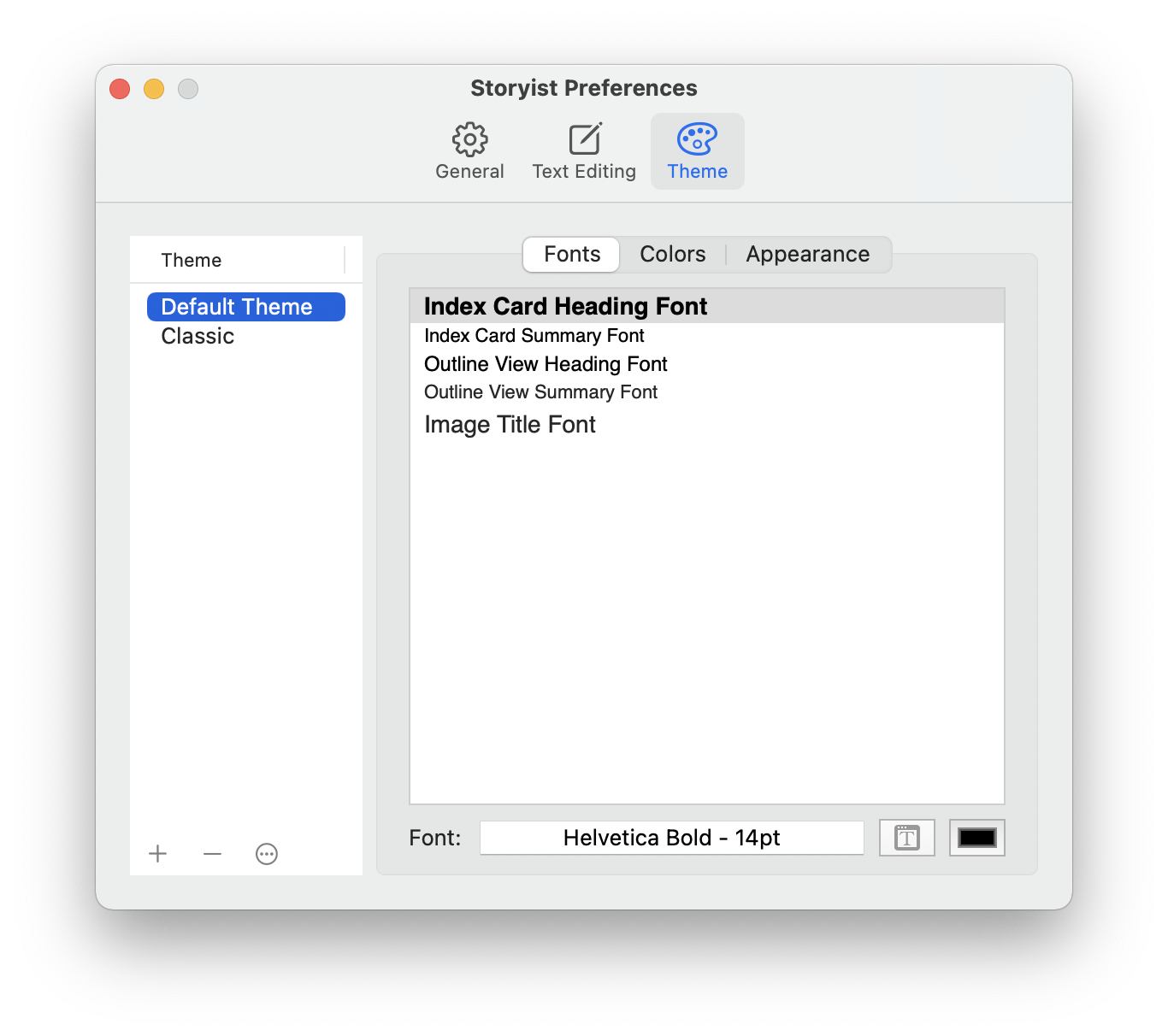
Appearance Preferences Pane
The Appearance Preferences pane lets you customize the fonts, colors, and icons used in the application.
Keyboard Shortcuts and Shortcut Menus
Many of the Storyist menu commands described in this user’s guide can be performed from the keyboard. To see a list of the available shortcuts, open Storyist and choose Help > Storyist Help, and click on the Keyboard Shortcuts link.
Some menu commands are also available from shortcut menus. To bring up a Shortcut menu, right-click or control-click an object or some selected text.