
Working with Text
Entering and Selecting Text
Entering and selecting text is easy.
- To position the insertion point and bring up the keyboard, just tap a location in the text.
- To move the insertion point, touch and hold to bring up the magnifying glass. Then, drag the magnifying glass to the desired location.
- To select a word, double-tap it.
- To select a paragraph, triple-tap it.
You can adjust the selection by touching and dragging the blue selection handles at either end of the selection.
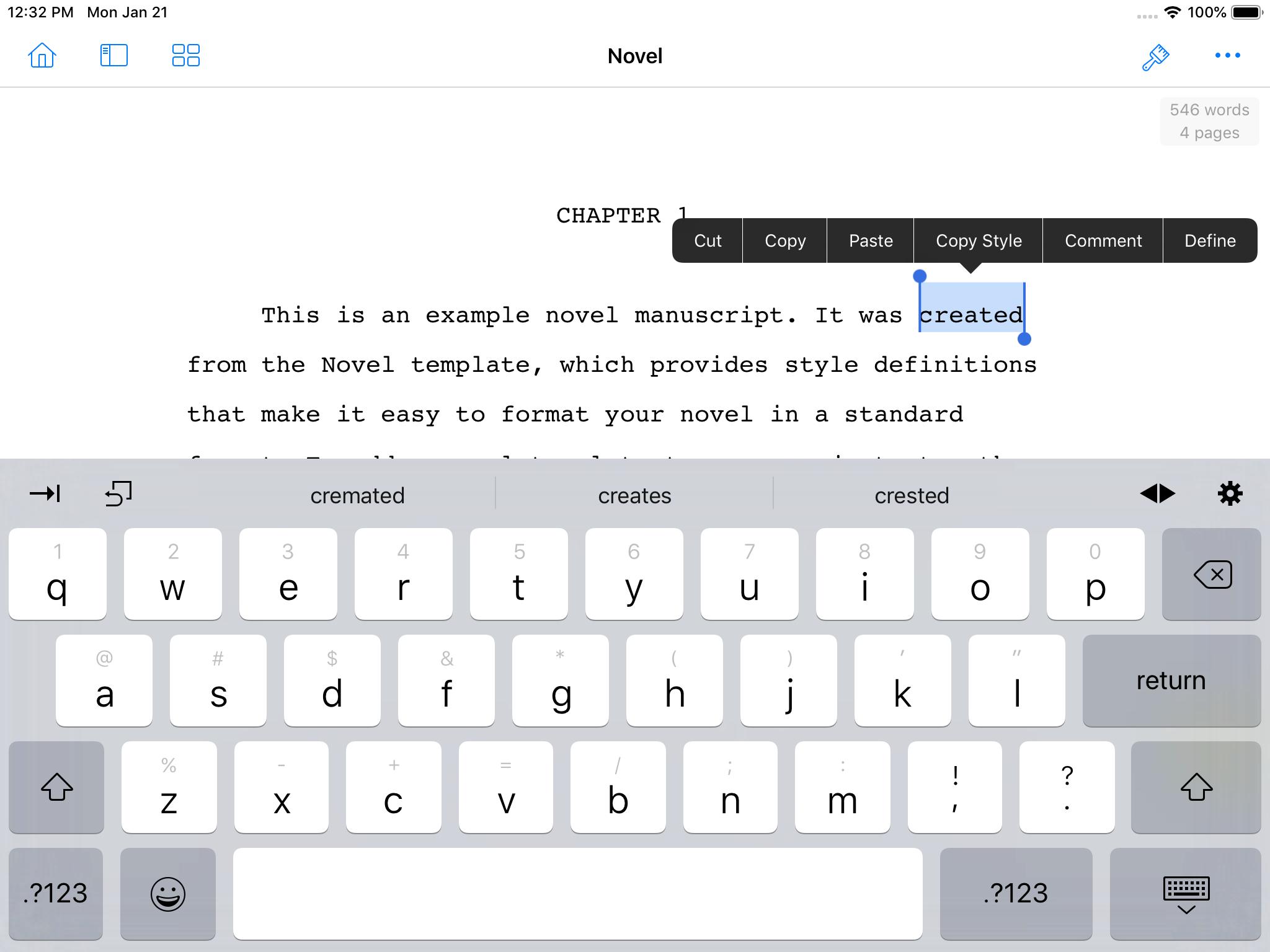
On iPhone, the extended keyboard also includes a Selection button that lets you:
- Move the cursor by character, word, or paragraph.
- Move just the start or end selection handles.
- Move to the beginning or end of the document.
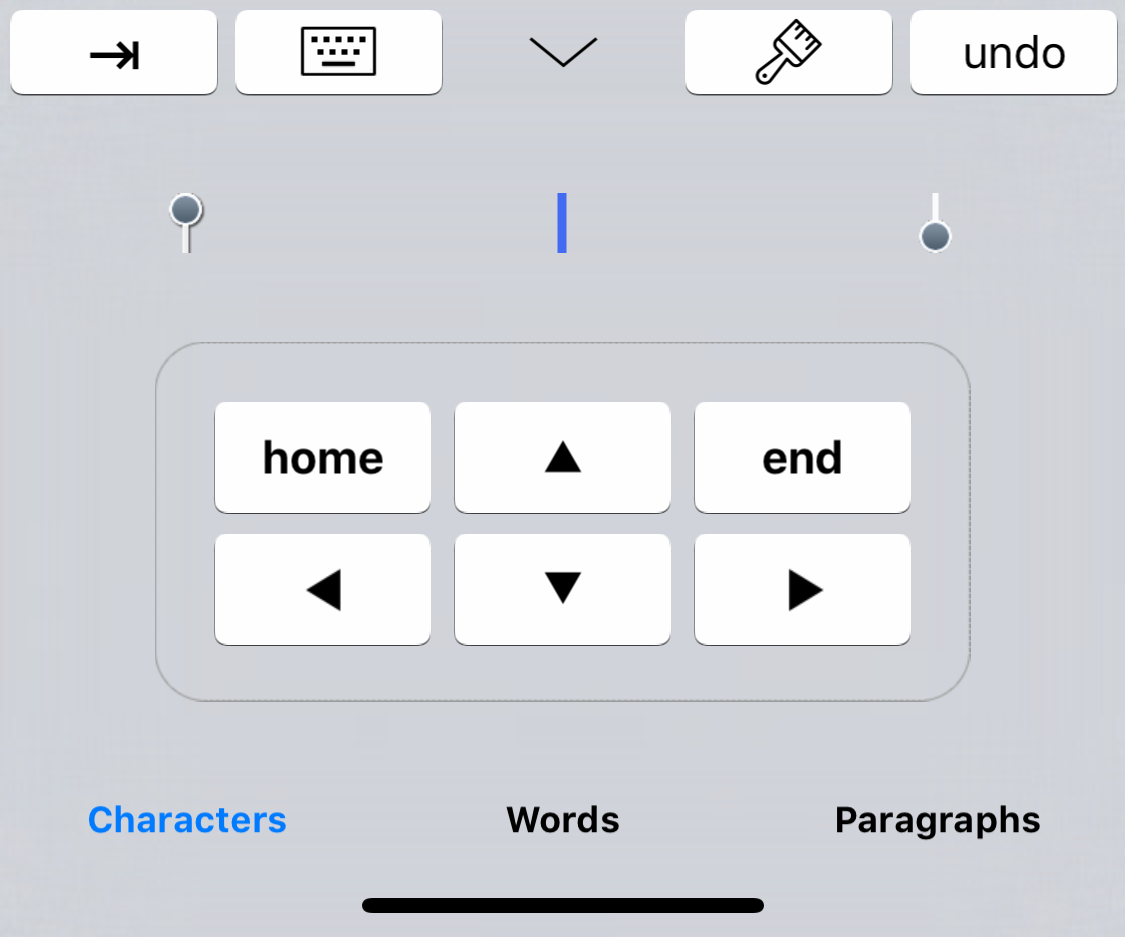
For example, to extend the current selection to the next paragraph boundary:
- Tap the Selection button. The keyboard changes to show the arrow keys.
- Tap the grey end selection handle icon.
- Tap “Paragraphs.”
- Tap the right arrow key.
Undoing and redoing editing operations is also straight-forward.
On iPad:
- To undo your typing, tap the More (…) button in the toolbar and select Undo.
- To redo the typing, tap the More (…) button in the toolbar and select Redo.
On iPhone
- To undo your typing, tap the Undo button in the extended keyboard.
- To redo the typing, shake the iPhone until the Redo alert appears. You can also use the shake gesture to undo editing operations.
Checking Spelling
Storyist can check your spelling for you as you type.
To enable spell checking:
- Tap the More icon in the toolbar.
- Tap Edit.
Tap Spelling.- Set the Check Spelling switch to ON.
When spell-checking is enabled, Storyist flags each misspelled word with a dotted red underline.
To correct a spelling error:
- Tap a misspelled word.
- Choose the correct spelling from the list that appears above the word.
Note: Storyist uses the language setting of the current keyboard to decide which language to use for spell checking. If you have previously added additional languages to your keyboard using the Settings app (General > Keyboard > Keyboards), you can use the world icon that appears near the space bar on the keyboard to switch between these languages.
The Spelling menu also lets you enable or disable auto-capitalization and auto-correction. If you enable auto-capitalization, Storyist will automatically capitalize the first word in a sentence. If you enable auto-correction, Storyist will automatically correct misspelled words if it can determine the correct spelling.
Changing Font and Paragraph Properties
The Font inspector lets you change properties such as font name, point size, and color. To bring up the Font inspector, select some text, tap the Format button, and then tap the Font tab.
Note: On iPad, the Format button appears in the Toolbar. On iPhone, it appears on the extended keyboard.
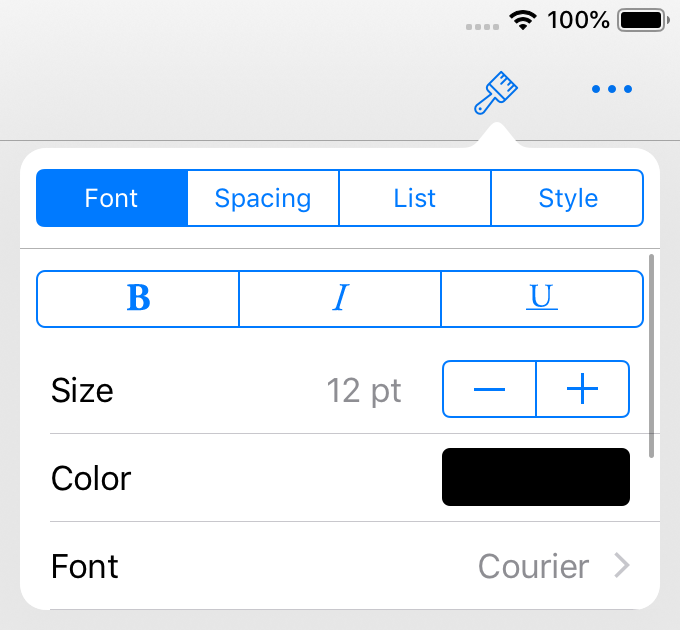
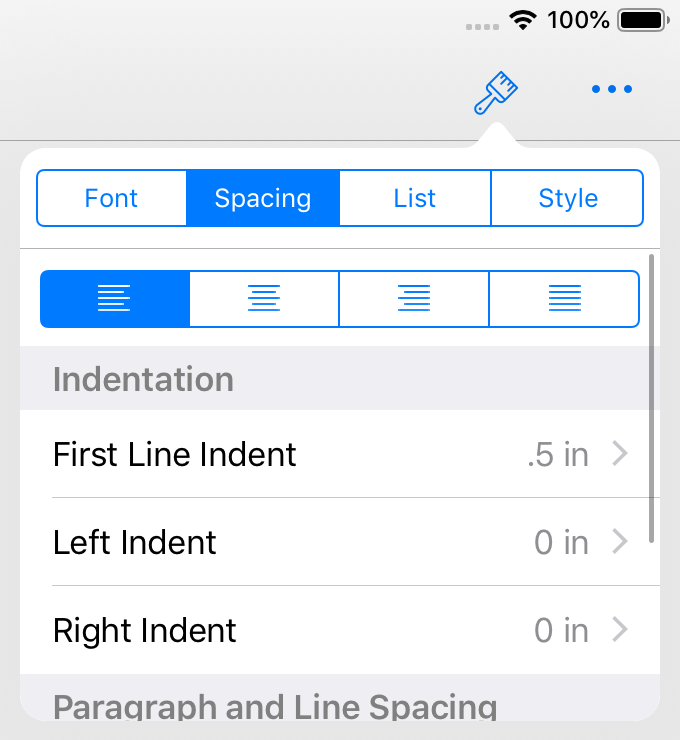
You can change the paragraph alignment and spacing by tapping the Format button and then tapping the Spacing tab.
The Spacing tab lets you set paragraph alignment, indentation, and spacing.
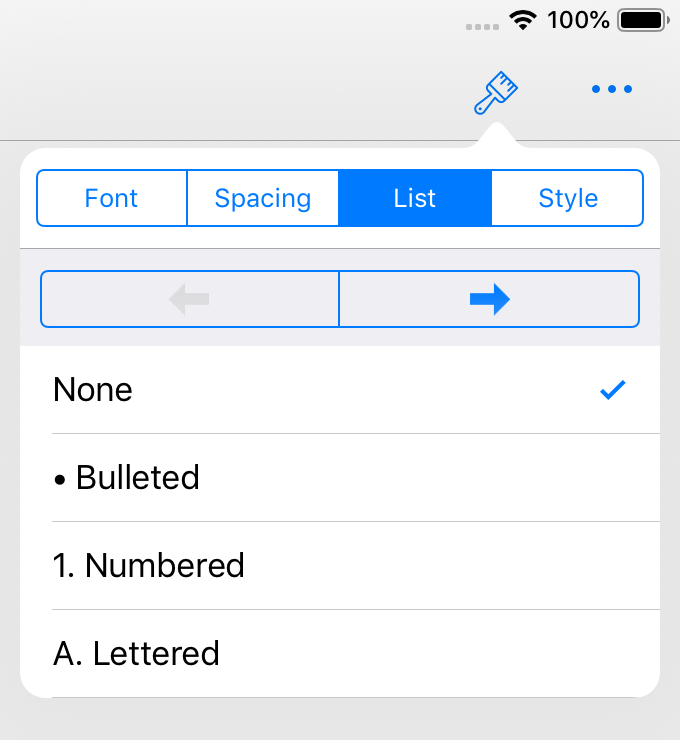
You can use the List inspector to create and modify lists.
Creating and Applying Styles
A style is a collection of font and paragraph formatting settings. Each Storyist template provides a group of styles, called a style sheet, that can be used to format your document quickly and consistently.
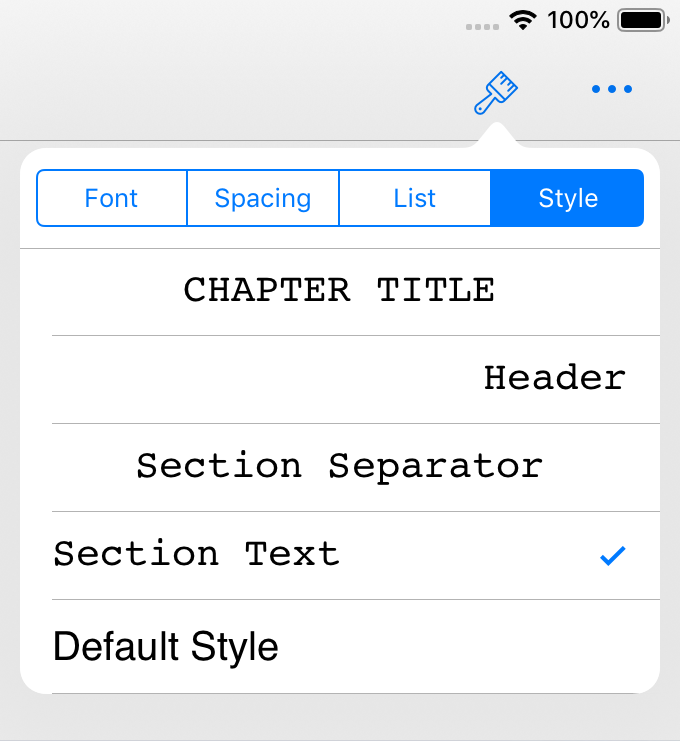
To apply a style to a paragraph:
- Tap in a paragraph to position the insertion point.
- Tap the Format button, and then tap the Style tab.
- Tap the style you want to apply.
To apply a style to all paragraphs formatted in a given style:
- Tap the More button in the toolbar and choose Edit > Style > Replace Styles (on iPad) or Style > Replace Styles (on iPhone).
- In the dialog that appears, tap the style you want to replace and select the style you want to replace it with.
- Tap the Back button to return to the Replace Styles dialog.
- Tap the Replace Styles button.
All text having the original style is reformatted with the replacement style.
Note: When applying the replacement style, the Replace Styles command preserves any formatting that has changed from the original style (that is, the style overrides). For example, if a paragraph contains bolded, italicized, or underlined words, and the original style does not specify bold, italics, or underlining, these formatting features are preserved after the replacement style has been applied.
To edit a style:
- Tap the More button in the toolbar and choose Edit > Style > Edit Styles (on iPad) or Style > Edit Styles (on iPhone).
- Tap the style you want to edit. The dialog will move forward and display the parameters for that style.
- Set the style’s parameters to the desired values.
- Tap the Back button to return to the Styles dialog.
- Tap the Save Style Changes button.
On iPad, you can also edit a style by changing a paragraph’s font and paragraph properties to the desired values and then choosing Edit > Style > Redefine Style from Selection. The style definition and all paragraphs having the selected style will be updated.
To delete a style from the style sheet:
- Tap the More button in the toolbar and chose Edit > Style > Edit Styles (on iPad) or Style > Edit Styles (on iPhone).
- Tap the Edit button in the Styles dialog that appears.
- Tap the red delete button next to the style you want to delete and then tap Delete.
- Tap Save Style Changes.
Note: Styles that are in use in the document are indicated by the “(in use)” label and can’t be deleted. You can use the Replace Styles command to apply a different style to the text so that the style you want to delete is no longer in use.
On iPad, you can also create new styles to use in your document. To create a new style:
- Tap in a paragraph having the style you want to use as a starting point for your new style.
- Tap the More button in the toolbar and choose Edit > Style > Create Style from Selection.
- Edit the name for the new style.
- If you want the new style to be applied to the current selection, set the “Apply to Text” switch to On.
- Tap the Create Style button.
Inserting and Resizing Images
You can add an image to a text file by copying the image from a webpage or from the Photos app and pasting it into your text. When you do so, Storyist inserts the image into the text and also places it in the Images folder so that you can reuse it.
Another way to insert an image to a text file is to tap the location in the text where you want to insert the image, and then do one of the following:
- On iPad, tap More > Edit> Insert > Image from This Project or More > Edit> Insert > Image from Photos App, and then tap the image you want to insert.
- On iPhone, tap the location a second time to cause the context menu to appear, tap Insert Image or Insert Project Image, and then tap the image you want to insert.
To resize an image:
- Tap the image you want to resize. A handle appears at the lower right corner of the image.
- Drag a resize handle to resize the image to the desired size.
Note: Storyist allows you to insert images only in text files associated with a project. RTF, Fountain, and Final Draft files do not support images.
Adding Chapters and Sections (or Scenes)
You can add new chapters, sections, or scenes (or more generally, outline elements) to your text at any time.
One way to do this is to simply type them in your manuscript and apply a style from the style sheet. To use this method:
- Place the insertion point at the location where you want a new outline element to appear.
- Tap the Return key to create a new, empty paragraph.
- Apply the style that corresponds to the element you want to add (for example, Chapter Title, Scene Heading, or Heading 1).
- Type the element title.
You can also add outline elements using the navigation sidebar.
To use this method:
- Open the navigation sidebar and switch to the Outline view.
- Tap the Edit button.
- Tap the outline element after which you want the new outline element to appear.
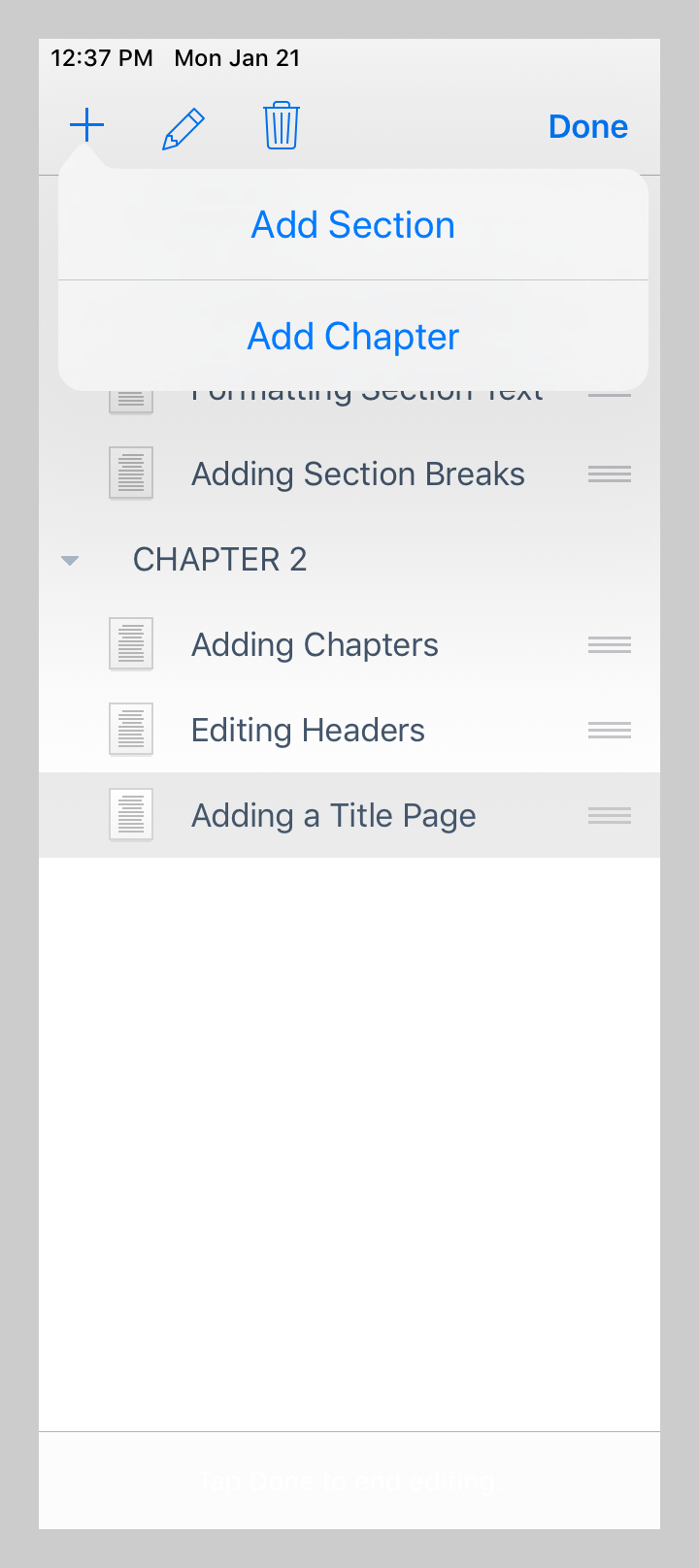
- Tap the Add (+) button in the toolbar.
- Choose the element you want to add from the list that appears.
Note: Adding index cards to the index card view also adds the corresponding outline element to the text. For more information on index card support in Storyist, please see the “Working with Index Cards” section below.
Adding and Displaying Comments
As you are writing, you might want to add comments (annotations) on specific paragraphs or sentences for later revision.
To add a comment to a text location:
- Place the cursor before or after the text you want to annotate.
- On iPad, tap the More button in the Toolbar and choose Edit > Insert > Comment. On iPhone, tap the cursor location a second time to show the context menu, and choose Comment.
- Type your comment.
To close the comment editor, tap in an area outside the editor. The comment will shrink and move to a point in the margins of the text. To edit the comment again, tap the comment icon in the margin.
To delete a comment, you can either delete the text containing the comment, or do the following:
- Open the Comment view in the navigation sidebar.
- Tap Edit.
- Select the comment you want to delete.
- Tap the Delete button.
Note: You can control whether comments are displayed in the text view using the Comments switch in the Editor Preferences window (More > Editor Preferences).
Editing Headers and Footers
In Page mode (that is, when Draft mode is set to OFF), headers and footers are displayed at the top and bottom of each page. Editing them is as simple as tapping in the header or footer area and typing your text.
All standard formatting features—including styles—are available in headers and footers.
To insert page numbers:
- Place the insertion point at the location in a header or footer where you want to insert a page number.
- Tap the “page #” key in the accessory keyboard.
You can change the placement of the headers and footers using the Page Setup view. To see the Page Setup view, tap the More icon in the toolbar and choose Page Setup.
Note: If your document does not yet have headers and footers and you’re having trouble locating the header or footer area, you can use the Show Page Guides switch in the Editor Preferences window (More > Editor Preferences) to make them visible.
Setting Page Margins
The Page Setup view allows you to set page margins. To do so:
- Tap the More icon in the toolbar and choose Page Setup.
- Make the desired top, bottom, left, and right margin changes. You can use the Show Page Guides switch in the Editor Preferences window (More > Editor Preferences) to see where the margins are located.
- Tap Done.
Note: You can enter margin values in inches, centimeters, points, or picas, using the abbreviations “in,” “cm,” “pt,” or “pc.”
The Page Setup view also lets you set the header and footer spacing and specify that the headers or footers on the first page are different from those on the following pages.
If you want to omit the header and/or footer from the first page:
- Tap the More icon in the toolbar and choose Page Setup.
- Tap the “Different first page header” or “Different first page footer” switch as appropriate.
- Tap Done.
- Tap the header or footer on the first page and delete the text.
You can also use the Page Setup view to set the page size to either US Letter or A4.
Note: If the Draft Mode switch is on in the Editor Preferences window (More > Editor Preferences), you can change the margin and header and footer settings, but the changes will not be visible on screen until you turn Draft mode off.
Screenwriting-Specific Features
When you edit a screenplay (either one created from the built-in Screenplay template or an imported Final Draft or Fountain file), Storyist puts some additional screenplay-specific tools at your disposal.
These are:
- Quick Styles. Storyist provides the familiar tab and return key shortcuts for quickly switching between screenplay elements.
- Autocompletion. As you type, Storyist collects your scene introductions, locations, times, character names, and transitions and auto-completes them for you when you need them.
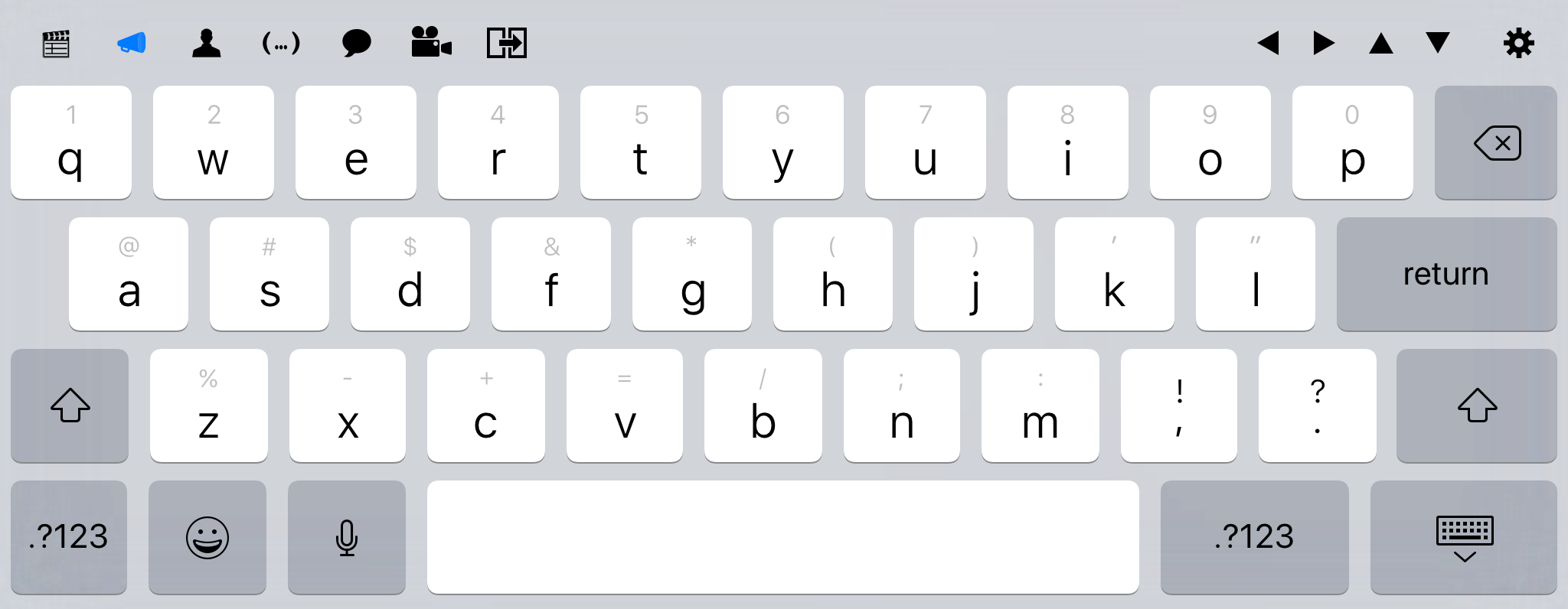
On iPads, the extended keyboard also includes keys for quick access to screenplay elements. These keys correspond to the Scene Heading, Action, Character, Parenthetical, Dialog, Shot, and Transition styles.
Keyboard Shortcuts
Storyist for iOS provides keyboard shortcuts for common actions. To see them, connect a physical keyboard to your iPad and press the Command key. The shortcuts available in the current editor appear in an overlay. The comprehensive list of shortcuts is available here.