
Working with Index Cards
About Index Card Support in Storyist
Many writers like to use index cards to get a high-level overview of their writing and to work on the structure of their documents. Storyist provides an index card view with virtual index cards for each chapter and section of your novel, or each scene of your screenplay.
To see the index card view:
- Open your manuscript or screenplay.
- Tap the index card view button. On iPad, this button is located in the top toolbar next to the title. On iPhone, it is location in the bottom toolbar.
You can use the index card view to outline, organize, and structure your work.
Editing Card Text and Color
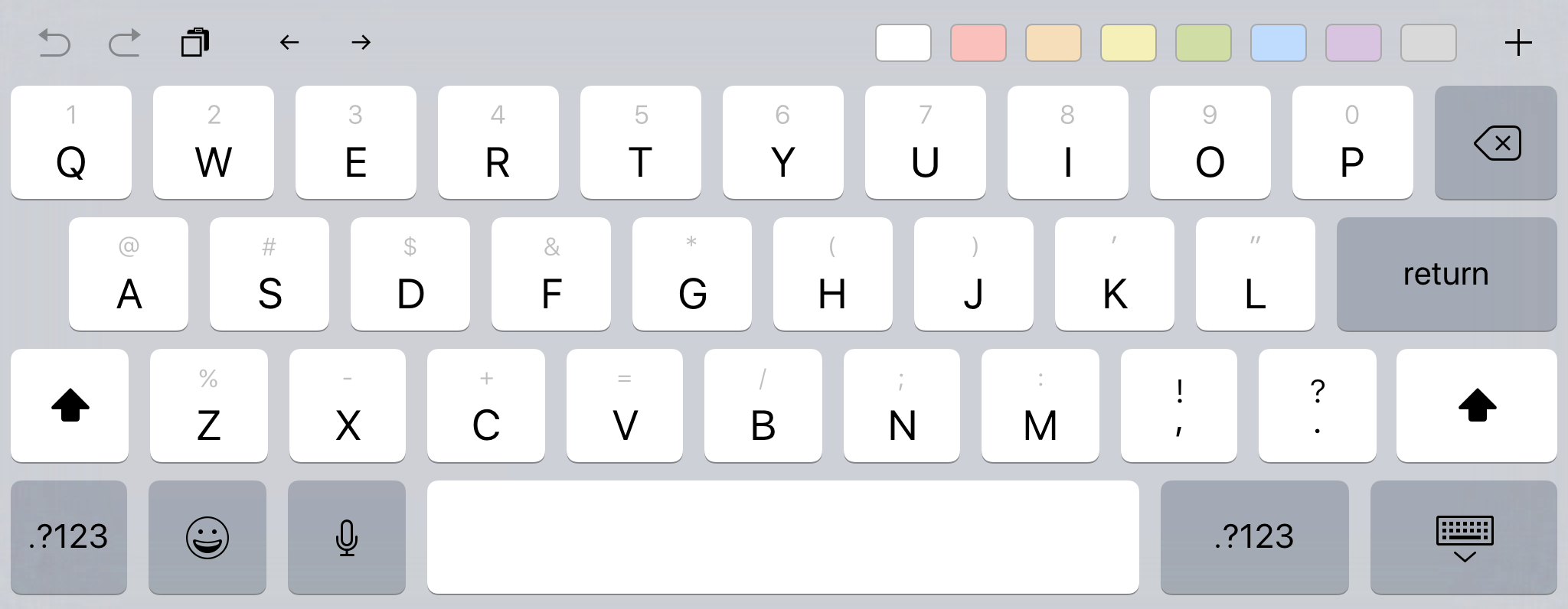
To edit a card, simply tap it. The index card zooms to full size and the keyboard appears.
Storyist provides an extended keyboard with keys for moving to the previous or next card and for changing the card color.
Adding and Arranging Cards
There are several ways to add cards to the index card view.
One way is to add them with the index card editor. This is especially useful if you have a bunch of ideas that you want to get down quickly.
- Tap a card to bring up the index card editor.
- Tap the Add (+) button in the extended keyboard.
A new card is created after the current card and selected for editing.
You can also add cards and labels using the navigation sidebar:
- Open the navigation sidebar and switch to the Cards view.
- Tap the Edit button.
- Tap the outline element after which you want the new card or label to appear.
- Tap the Add (+) button and select the item (chapter/section/scene) you want to add.
You can arrange the cards by pressing and holding a card and then dragging it to a new position in the index card view.
Note: The text view and the index card view are linked. When you add cards to the index card view, Storyist adds the corresponding elements in the text view. When you rearrange index cards in the index card view, Storyist moves the corresponding text in the text view.