
Storyist 4 for iOS Users Guide
Creating a New Project
A Storyist project can contain text files (manuscript, scripts, notes), story sheets, and images. You can easily create a new project as follows:
- Return to the Storyist home screen.
- Tap the Add(+) button in the toolbar.
- Choose one of the built-in templates.
The Novel Template—This template provides a starting point for a novel manuscript and includes:
- A manuscript with style definitions that make it easy to format your novel in a standard format. The placeholder text includes a brief introduction to manuscript formatting to give you a sense of what the formatting looks like.
- A title page to include with your manuscript submissions.
- Several example character and setting story sheets that you can use or replace as needed.
If you want to write a novel and aren’t sure which template to use, select the Novel template.
The Screenplay Template—This template provides a starting point for a film script. It includes:
- A script with style definitions that make it easy to format your screenplay in a standard format.
- A title page to include with your submissions.
If you want to write a screenplay and aren’t sure which template to use, choose this one.
The Blank Template—This template provides a starting point for a project of any type. It includes empty folders to hold text files and images. To add text files, story sheets, or additional folders to the project, open the project, and tap the Add (+) button.
To rename a project, simply tap the title text beneath the icon and enter a new title.
Getting Around
Once you’ve created a project, you can rename it by tapping the label beneath the icon in the Storyist home screen and entering a new name.
To open a project, tap its icon in the Storyist home screen.
To delete a project:
- Tap the Select button in the toolbar.
- Tap the project you want to delete.
- Tap the Delete button.
Note: The Storyist home screen very similar to the Files app. For more information on how to use its features, see the Apple support article titled “Use the Files app on your iPhone, iPad, or iPod touch.”
After you’ve opened a project, there are several ways to get around. The easiest is to simply tap.
- Tap a file or folder to open it.
- Tap the Home button in the toolbar to return to the previous item.
Storyist also includes a navigation sidebar that lets you quickly switch between items in your project. To display it, tap the Navigator button in the toolbar, or swipe from left to right.
If you’re editing a Storyist project, the navigation sidebar initially displays the Project view. This view shows the contents of your project and lets you quickly jump between project files and folders.
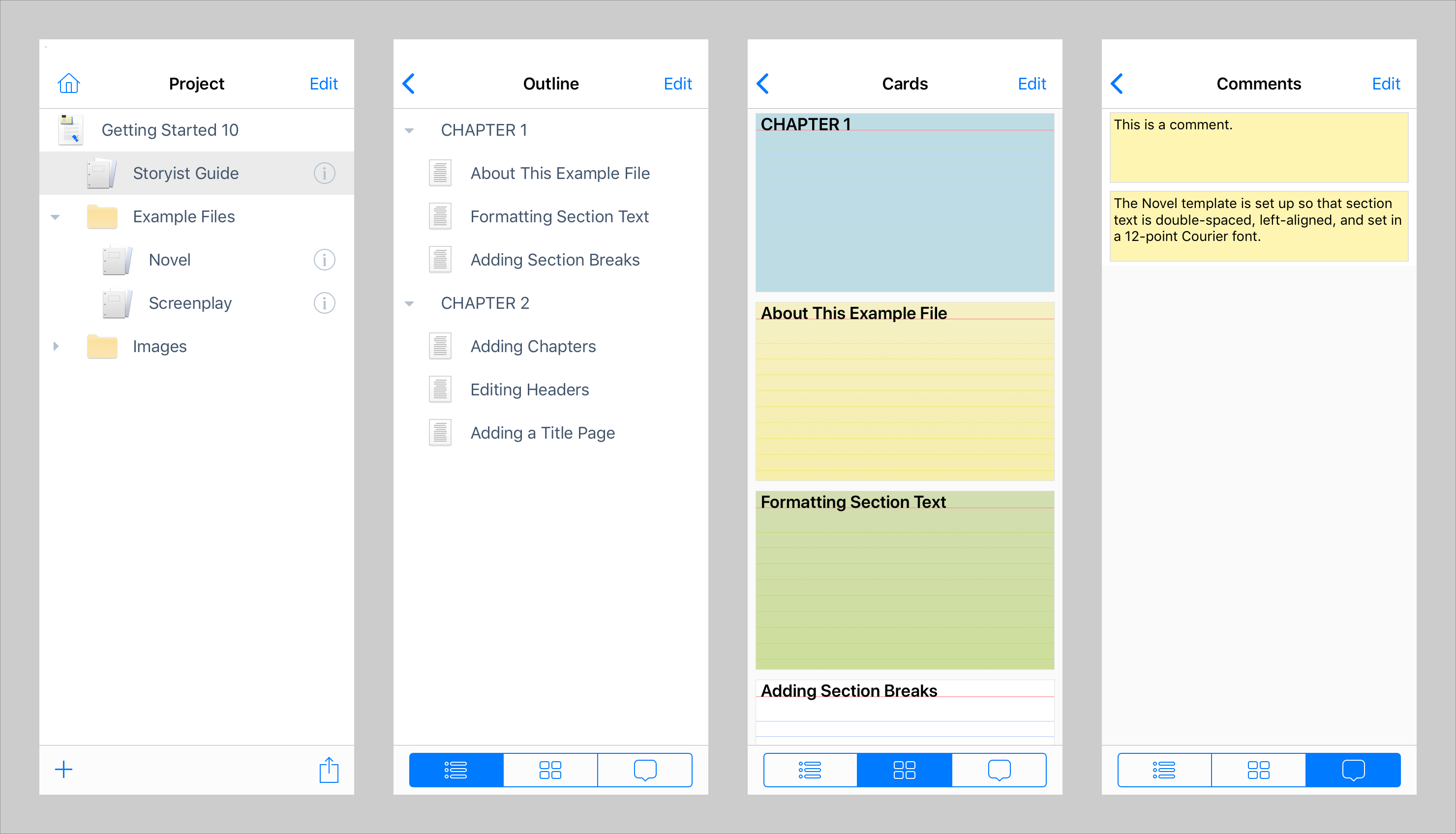
In addition to using the Project view to get around, you can also use it to add, rename, delete, and export project items. The Add and Export buttons are available in the bottom bar, and the Rename and Delete buttons are available when you tap the Edit button.
Note: As a shortcut, you can press and hold an item in the navigation sidebar to rename it.
If you’re editing a stand-alone RTF, Plain Text, Fountain, or FDX file, or if you tap the disclosure button next to a text item in the Project view, the navigation sidebar displays a view that can show the text file’s outline, index cards, and comments.
You can also use the navigation sidebar to add, rename, and delete text file items. These functions are available when you tap the Edit button.
Note: As with the Project view, you can press and hold an item in the navigation sidebar to rename it. If you’re viewing index cards, the card editor will appear. This provides a quick way to modify a card while you are writing.